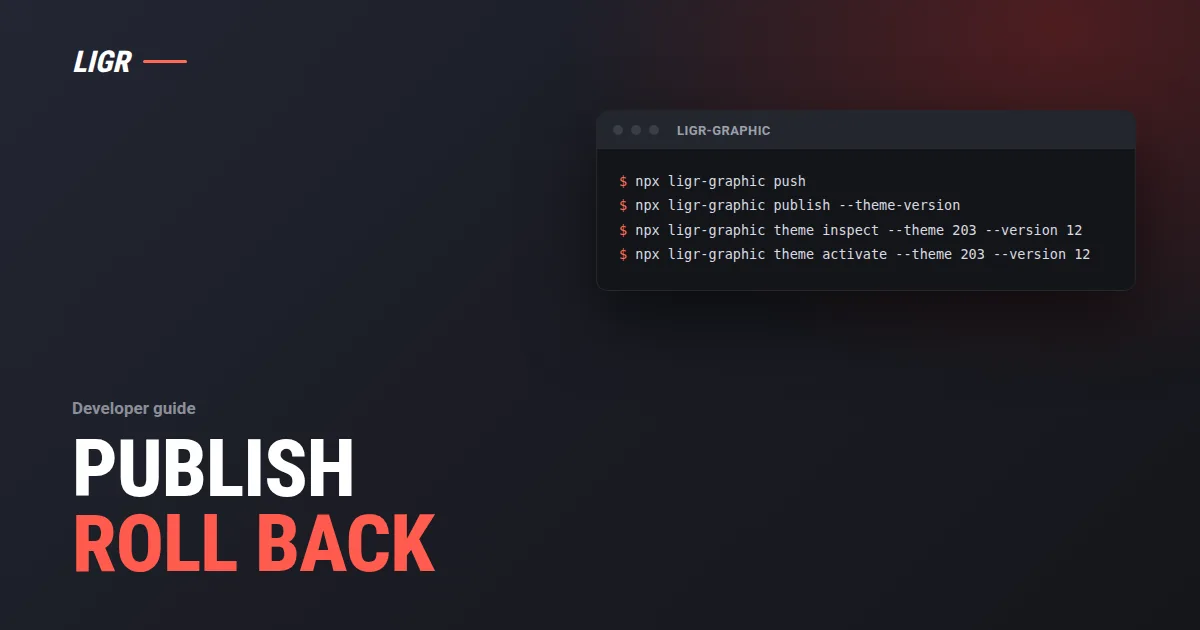
Push a code graphic into a LIGR theme, publish an immutable graphic version, pin it in a theme version and activate that exact snapshot when the operator is ready. With the ligr-graphic CLI or plain REST calls.
LIGR publishes a graphic in a fixed order: create the theme and the graphic once, push the bundle, publish a graphic version, publish a theme version that pins it, then inspect and activate that theme version. This guide walks through that sequence twice, once with the ligr-graphic CLI (in beta, like the routes it calls) and once over the broadcast graphics API with curl. Then it covers versions, rollback and native Rive graphics. Every command and response below is copied from the Push and publish page, the Publish a theme version guide, and the Rive Command line and Import through REST pages.
It is written for developers, integrators and broadcast engineers who publish graphics from a script rather than the dashboard.
Beta. The Graphics SDK, the ligr-graphic CLI, native Rive creation and its REST routes, and the Themes and Code graphics operations under /v2/themes are in beta. The protocol, the manifest and the REST shapes can change between minor versions. Every response from a beta route carries X-Ligr-Beta: true. See Beta status and Beta endpoints.
What you are publishing
A code graphic is a graphic you write yourself in HTML, CSS and JavaScript. The LIGR overlay loads it in a transparent frame over the video, sends it live match data, and tells it when to show and when to hide. It runs beside the Rive graphics in the same theme, and operators drive it from the same control room.
The overlay is a GPU-accelerated Chromium browser. Any rendering library that runs in a browser works inside your graphic, including Three.js, PixiJS, Rive, Lottie and GSAP.
Publishing works on the theme tree. These are the objects you touch, as the Concepts page defines them:
| Object | What it is |
|---|---|
| Theme | A sport-scoped set of graphics. Its activeVersion is what overlays render |
| Graphic | One graphic, either Rive or code. graphicId is stable across publishes |
| Working version | The mutable draft you push to |
| Published versions | Immutable snapshots, numbered 1, 2, 3 and up |
| Theme version | A frozen list of graphic versions |
Nothing reaches air by being pushed. A push changes the working version. A publish freezes it. A theme version pins frozen graphic versions. Only activation changes what an overlay loads, on its next page load.
Before you start
- A write key. In the dashboard, open the account menu and select Developers → API keys → Create API key. Only admins and owners see Developers. Theme and code graphic routes sit under the
themesresource, so the key needsthemes:write, which includesthemes:read. A read key on a write route returns403withINSUFFICIENT_SCOPE. See Authentication. - A theme your organisation owns. You create it yourself. An organisation can own up to five themes.
- A built bundle. A bundle is the folder of static files the overlay loads, usually
dist/. Use relative paths only, keep the<body>background transparent and make no network call at runtime. One file can be up to 5 MiB and one bundle up to 10 MiB. See Bundle rules. - A manifest. Keep it in
graphic.jsonnext to your source. Over REST it is thestateMachinefield. See The manifest.
Test before you push. npx ligr-graphic dev runs a local harness that needs no API key and sends the same message order as the LIGR overlay. The Test and troubleshoot page has the checklist to run before a broadcast.
The sequence at a glance
Both routes run the same calls. The CLI folds the upload steps into one command.
| Step | CLI | REST |
|---|---|---|
| Create the theme (once) | theme create | POST /v2/themes |
| Create the graphic (once) | create | POST …/code-graphics |
| Upload the files | push | POST …/uploads, then a PUT to each URL |
| Record the bundle | PUT …/bundle | |
| Publish the graphic version | publish --theme-version | POST …/versions on the graphic |
| Publish a theme version | POST /v2/themes/{themeId}/versions | |
| Inspect and activate | theme inspect, theme activate | GET …/versions/{version}, PUT …/active-version |
Route 1: the ligr-graphic CLI
ligr-graphic runs the REST calls for you. Set LIGR_API_KEY in your shell and replace 203 with your theme id. npx ligr-graphic theme list prints the themes your organisation owns. The Quick start covers scaffolding a new graphic.
Create the theme
Once per theme. The command prints the theme id. In a folder that holds graphic.json, it writes the theme id into ligr.json.
npx ligr-graphic theme create --name "My Theme" --sports footballCreate the graphic
Once per graphic. The command writes ligr.json with the theme id and the graphic id.
npx ligr-graphic create --theme 203 --name "Scorebug" --sports footballPush the bundle
The command builds, validates, uploads only the files whose hash changed, and records the bundle with graphic.json as the manifest. npx ligr-graphic validate runs the same checks without a push.
npx ligr-graphic pushPublish the graphic, then the theme
The command publishes a graphic version. With --theme-version it also publishes a theme version pinned to it. npx ligr-graphic status prints the working version, the published versions, the assets and the lock.
npx ligr-graphic publish --theme-versionInspect and activate the published theme version
Replace 12 with the version the publish printed. These commands select an existing snapshot. They do not publish another version or change its graphic selections.
npx ligr-graphic theme inspect --theme 203 --version 12
npx ligr-graphic theme activate --theme 203 --version 12
The docs advise publishing without activating, then activating the reviewed version when the operator is ready. Reload the preview overlay to verify it. Existing broadcast sources keep their loaded version until reloaded.
Route 2: the REST API
Send the key as Authorization: Bearer <api key>. The base URL is https://api.ligr.live/rest. Create the theme and the graphic once, then upload and publish each revision. A full push of a one-file graphic is four requests.
Create the theme and the graphic
Create the theme
Keep the id from the answer. The sixth theme returns 409 THEME_LIMIT_REACHED.
curl -X POST 'https://api.ligr.live/rest/v2/themes' \
  -H "Authorization: Bearer $LIGR_API_KEY" \
  -H 'Content-Type: application/json' \
  -d '{ "name": "My Theme", "sports": ["football"],
        "variables": [{ "id": "accent", "name": "accent", "type": "string", "defaultValue": "#ff0000" }] }'
{ "id": 203, "name": "My Theme", "activeVersion": null, "versions": [], "graphics": [] }Create the graphic
Keep the graphicId from the answer. The answer holds two identifiers. Every later call takes graphicId, the UUID, in the path. id is the internal row number and never goes in a path: a path with id in it answers 404.
curl -X POST 'https://api.ligr.live/rest/v2/themes/203/code-graphics' \
  -H "Authorization: Bearer $LIGR_API_KEY" \
  -H 'Content-Type: application/json' \
  -d '{ "name": "Scorebug", "sports": ["football"] }'
{
"graphicId": "e5515527-238e-44cb-9567-b65902218d47",
"id": 1761,
"name": "Scorebug",
"type": "code",
"version": 0,
"sports": ["football"],
"publishedVersions": [],
"lock": null
}Upload the files and record the bundle
Request an upload URL for each file
One call opens one upload session. Keep the uploadSessionId. Each URL is valid for 10 minutes, and one request signs at most 200 files. For more, send the same uploadSessionId in the next request.
curl -X POST "https://api.ligr.live/rest/v2/themes/203/code-graphics/$GRAPHIC_ID/uploads" \
  -H "Authorization: Bearer $LIGR_API_KEY" \
  -H 'Content-Type: application/json' \
  -d '{ "files": [
    { "name": "index.html", "contentType": "text/html" },
    { "name": "assets/app.js", "contentType": "application/javascript" }
  ] }'
{
"uploadSessionId": "823d14c6-ef4e-4d72-932e-20d8ed422e3c",
"uploads": [
{ "name": "index.html", "url": "https://…?X-Amz-Signature=…", "method": "PUT", "expiresInSeconds": 600 },
{ "name": "assets/app.js", "url": "https://…?X-Amz-Signature=…", "method": "PUT", "expiresInSeconds": 600 }
]
}Send each file to its URL
Use the content type you declared. The same value goes in contentType here and in mime when you record the bundle.
curl -X PUT "$UPLOAD_URL" \
  -H 'Content-Type: text/html' \
--data-binary @dist/index.htmlRecord the bundle
Name every file the graphic keeps, with the manifest. files is the complete file set: a file you leave out is deleted. A file already in the graphic is kept, so you can skip an unchanged file by comparing its hash.
curl -X PUT "https://api.ligr.live/rest/v2/themes/203/code-graphics/$GRAPHIC_ID/bundle" \
  -H "Authorization: Bearer $LIGR_API_KEY" \
  -H 'Content-Type: application/json' \
  -d '{
    "uploadSessionId": "823d14c6-ef4e-4d72-932e-20d8ed422e3c",
    "files": [
      { "name": "index.html", "mime": "text/html", "size": 1240, "hash": "sha256:6f1c…" },
      { "name": "assets/app.js", "mime": "application/javascript", "size": 8300, "hash": "sha256:9b02…" }
    ],
    "stateMachine": { "schemaVersion": 1, "runtime": { "engine": "iframe-html", "entryFile": "index.html", "width": 1920, "height": 1080, "exitDurationMs": 800 }, "controlVariables": [], "userExpressions": [] }
  }'
The answer is the working copy of the graphic, with its assets and its publishedVersions. Nothing is published yet.
Publish and activate
Publish the graphic version
A publish turns the working copy into an immutable version and opens the next working copy. The version in the answer is the number a theme version pins.
curl -X POST "https://api.ligr.live/rest/v2/themes/203/code-graphics/$GRAPHIC_ID/versions" \
  -H "Authorization: Bearer $LIGR_API_KEY"
{ "version": 3 }Publish a theme version that holds it
With "activate": false the new theme version is created but the active version stays where it was.
curl -X POST 'https://api.ligr.live/rest/v2/themes/203/versions' \
  -H "Authorization: Bearer $LIGR_API_KEY" \
  -H 'Content-Type: application/json' \
  -d '{ "activate": false }'
{ "version": 12, "activeVersion": 11 }Inspect, then activate that exact snapshot
Inspect GET /v2/themes/203/versions/12 first. The response lists the frozen graphic version selections. Then select it. This request does not publish a new version or change its contents.
curl -X PUT 'https://api.ligr.live/rest/v2/themes/203/active-version' \
  -H "Authorization: Bearer $LIGR_API_KEY" \
  -H 'Content-Type: application/json' \
  -d '{ "version": 12 }'
{ "activeVersion": 12 }Reload the preview overlay to load the selected version, and check it before you reload a broadcast browser source.
Activation selects the shared theme version for every competition using that theme. The customer dashboard has no activation action, so use the CLI or REST, then reload broadcast sources when the operator is ready.
Why graphics versioning matters
Versions keep editing, releasing and going on air apart.
- Published versions are immutable. A later push changes only the working copy. A published graphic version keeps the files it was published with.
- A theme version is frozen. It pins a set of published graphic versions. Inspecting version 12 shows the same selections regardless of later graphic publications.
- Activation is a separate request. Publishing a theme version changes nothing on air. The active version changes only when you call
PUT …/active-versionortheme activate. - Overlays load on page load. An overlay loads the active theme version when its page loads. Existing overlay pages keep their loaded version until reloaded.
That last point matters on match day. Activation does not change a graphic already loaded on a live browser source. The change lands when that source reloads, so you choose the moment.
Pin the versions you want
A theme version publish pins every graphic you list at the version you give, and every graphic you do not list at its latest published version. A graphic with no published version is left out. A theme version can pin published versions only.
So if one graphic is not ready, you can still publish the others and hold that one at a known good version. From the guide:
curl -X POST 'https://api.ligr.live/rest/v2/themes/203/versions' \
  -H "Authorization: Bearer $LIGR_API_KEY" \
  -H 'Content-Type: application/json' \
  -d '{
    "graphics": [
      { "graphicId": "c1e2a9d0-5b7e-4f60-9c3a-2d1f0e8b7a64", "version": 5 }
    ]
  }'
In that example the lower third is pinned at version 5 and the scorebug at its latest, version 3. The active version is still 11. Nothing changed on air.
Rolling back a bad graphic mid-season
The documented rollback works at the theme version level. You activate an older theme snapshot that already holds the graphic versions you trust.
Find the older version
Read the theme's versions list, then inspect the old version with GET /v2/themes/203/versions/11.
Activate it
Activate that existing snapshot to restore its exact graphic selection, including the absence of graphics added later.
npx ligr-graphic theme inspect --theme 203 --version 11
npx ligr-graphic theme activate --theme 203 --version 11Reload in the right order
Reload the preview overlay to verify the rollback. Reload broadcast sources when the operator is ready.
Two effects to plan for. Because activation is shared, the rollback applies to every competition using that theme. And presets for graphics absent from the selected snapshot are hidden. They return if you activate a snapshot containing those graphics.
The Rive route, briefly
Native Rive graphics are a separate path. A native Rive graphic stores exact .riv runtime bytes, one artboard, one state machine and LIGR configuration, and LIGR renders it through the native Rive runtime inside an isolated browser frame. It does not use the Graphics SDK or the ligr.gfx.v1 protocol.
Here the upload can be a source project. LIGR stores a .riv unchanged, and extracts and compiles a .rev or a complete RML project ZIP into a runtime. Check GET /v2/themes/{themeId}/rive-graphics/capabilities before each import. The CLI does the whole import in one command, as Command line shows:
npx ligr-graphic rive import ./continental-scorebug.zip \
  --theme 203 --name "Continental scorebug"
Over REST, Import through REST uploads the file, prepares it, polls until it is ready, and creates the working graphic. The page defines a small api shell helper first. Its publish step:
GRAPHIC_VERSION=$(api POST "v2/themes/$THEME_ID/rive-graphics/$GRAPHIC_ID/versions" | jq -er '.version')

THEME_VERSION=$(api POST "v2/themes/$THEME_ID/versions" --data "$(jq -n \
  --arg graphicId "$GRAPHIC_ID" --argjson version "$GRAPHIC_VERSION" \
  '{graphics: [{graphicId: $graphicId, version: $version}], activate: false}')" | jq -er '.version')

api PUT "v2/themes/$THEME_ID/active-version" \
  --data "$(jq -n --argjson version "$THEME_VERSION" '{version: $version}')" | jq
These are three separate mutations. Activation changes what new overlay page loads will render.
Errors you will meet
| Status and code | Cause | What to do |
|---|---|---|
400 CODE_GRAPHIC_INVALID | The manifest breaks a rule, or a file in files is in neither the session nor the graphic | Read details[]. Each line is one problem |
400 BUNDLE_TOO_LARGE | A file is over 5 MiB, or the bundle is over 10 MiB | details[] names the files |
403 INSUFFICIENT_SCOPE | A read key on a write route | Use a key with themes:write |
404 | The theme or graphic does not exist, or your organisation does not own it | Use a key of the organisation that owns the theme |
409 LOCKED | Someone has the graphic open in the dashboard editor | Read holder.userName. Wait up to 60 seconds, then retry. Do not delete and recreate the graphic |
Frequently asked questions
What is the order of calls to publish a graphic through the LIGR API?
Create the theme and the graphic once. For each revision, request upload URLs, send each file, record the bundle, publish the graphic version, and publish a theme version that pins it. Then inspect that theme version and activate it. The CLI runs the same sequence with push, publish --theme-version and theme activate.
Does publishing a graphic put it on air?
No. Publishing freezes the working copy as a graphic version. A theme version then pins it, and only activation changes the theme's active version. Even then, existing overlay pages keep their loaded version until they are reloaded.
How do I roll back a graphic?
Activate an older theme version. Inspect it with GET …/versions/{version} or theme inspect, then activate it with PUT …/active-version or theme activate. It restores that snapshot's exact graphic selection. Reload the preview overlay first, then broadcast sources when the operator is ready.
Can I activate a theme version from the dashboard?
Not today. The customer dashboard does not expose theme version activation. Use the CLI or REST. The dashboard is where you assign the theme to a competition and operate it.
Are these endpoints stable?
They are beta. The Themes and Code graphics operations under /v2/themes can change between minor versions. Each change gets a changelog entry, and a removed or renamed field keeps working for at least 30 days after that entry.
Publish your first graphic version
The Push and publish page holds every call in this guide, with the upload session rules, the lock and the full error table.