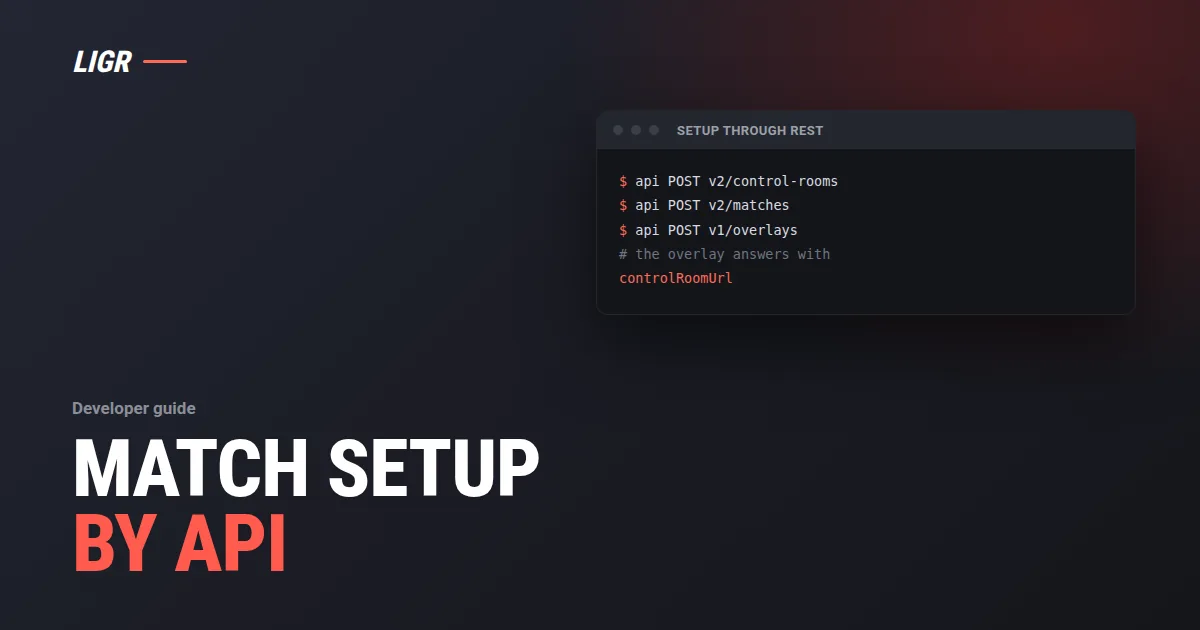
Create the graphic, the control room, the match and a manual overlay through the LIGR REST API, and get back a controlRoomUrl that opens the finished setup. Then fire presets, score the match and listen for webhooks from the same integration.
The LIGR sports data API can prepare a full broadcast graphics session before anyone opens the dashboard. One documented sequence of REST calls publishes a graphic, builds a control room with a preset, creates the competition, teams, venue and match, attaches a manual overlay, and returns a controlRoomUrl that opens the finished setup.
This guide is for leagues and integrators with their own fixtures system. That system, or the live score API you already run, stays the source of truth for who plays whom, where and when. LIGR holds the graphics side: the theme, the control room buttons and the overlay your vision mixer loads. Script the setup, and every fixture on a busy Saturday gets the same session, built the same way.
We follow the order in Set up through REST exactly, then cover what comes after: firing graphics, manual mode, checking your work, linked overlays, data sources, scoring, webhooks and rate limits.
Before you start: the key and its scopes
Every REST request carries an API key in Authorization: Bearer <api key>. Organisation owners and admins create keys from the account menu, under Developers > API keys > Create API key. LIGR shows the full key once. The default expiry is 30 days, and an expired key returns 401 with API_KEY_EXPIRED. The setup flow needs these scopes:
themes:writecompetitions:writeteams:writevenues:writematches:writeoverlays:write
Each write scope also allows reads for that resource. A missing scope returns 403 with INSUFFICIENT_SCOPE, naming the scope. Add data-sources:write if you push data sources. See Authentication.
Keep the key in a secrets store, never in a browser. The person who opens the control room link needs their own authenticated dashboard session in the same organisation.
The documented sequence
The order matters. A preset reads the graphic from the theme's active published version, so the graphic comes first. A theme profile needs an active published version that supports the competition's sport. The overlay needs the match, the profile and the room.
| Step | What you create | Routes |
|---|---|---|
| 1 | Theme, graphic, theme version (beta) | POST /v2/themes, POST /v2/themes/{themeId}/code-graphics, uploads, bundle, versions, PUT /v2/themes/{themeId}/active-version |
| 2 | Room, section, preset | POST /v2/control-rooms, POST /v2/control-rooms/{roomId}/sections, POST /v2/control-rooms/{roomId}/presets |
| 3 | Competition, venue, teams | GET /v1/competitions/grades, POST /v1/competitions, POST /v1/venues, POST /v1/teams |
| 4 | Match, theme profile | POST /v2/matches, POST /v2/competitions/{competitionId}/theme-profiles |
| 5 | Manual overlay | POST /v1/overlays |
| 6 | Open and test | controlRoomUrl, or POST /v2/overlays/{overlayId}/control-room/graphics |
The examples use Bash, curl and jq in one terminal, with a small helper from the docs:
set -euo pipefail
export LIGR_API_ORIGIN="${LIGR_API_ORIGIN:-https://api.ligr.live}"
export LIGR_REST="$LIGR_API_ORIGIN/rest"

api() {
  local method="$1" route="$2"
  shift 2
  curl --fail-with-body --silent --show-error \
    -X "$method" "$LIGR_REST/$route" \
    -H "Authorization: Bearer $LIGR_API_KEY" \
    -H 'Content-Type: application/json' "$@"
}
The default production REST base URL is https://api.ligr.live/rest.
Publish the graphic
Create the theme, create a code graphic in it, upload the bundle, publish the graphic, publish a theme version, then activate that exact version. The routes are in Push and publish. For a native Rive graphic, follow Import through REST through theme activation instead. Save the theme's numeric id as THEME_ID and the graphic's UUID as GRAPHIC_ID.
Beta. The Graphics SDK, the ligr-graphic CLI and the theme and code graphics REST routes are in beta, and so are native Rive creation and its REST routes. The protocol, the manifest and the REST shapes can change between minor versions, and every response from a beta route carries X-Ligr-Beta: true. Your organisation can own up to five themes. See Beta status.
Create the room and preset
A room belongs to your organisation and one theme. A section groups its preset buttons.
ROOM_ID=$(api POST v2/control-rooms --data "$(jq -n \
  --argjson themeId "$THEME_ID" \
  '{themeId: $themeId, name: "Match control room"}')" | jq -er '.id')

SECTION_ID=$(api POST "v2/control-rooms/$ROOM_ID/sections" \
  --data '{"name":"Match graphics"}' | jq -er '.id')

PRESET_ID=$(api POST "v2/control-rooms/$ROOM_ID/presets" --data "$(jq -n \
  --arg sectionId "$SECTION_ID" --arg graphicId "$GRAPHIC_ID" \
  '{sectionId: $sectionId, graphicId: $graphicId, name: "Scorebug", variableValues: {}}')" \
  | jq -er '.id')
Set variableValues by manifest variable name for string, number, boolean and enum variables. Name fact, stat, team, player and match variables in exposeVariables, and the operator picks the value live. Only variables named in either field appear on the preset. Do not send hide. Unknown names and invalid values fail before creation.
Create the competition, venue and teams
Use existing IDs where you have them to skip creation calls. Otherwise list grades, set GRADE_ID, then create the competition, a venue and two teams. The docs example uses adult mixed football.
Create the match and theme profile
Set MATCH_DATE to kick-off in ISO 8601 format, including its timezone. The example uses team competitors. Other sports can use player competitors.
MATCH_ID=$(api POST v2/matches --data "$(jq -n \
  --arg date "$MATCH_DATE" --argjson competitionId "$COMPETITION_ID" \
  --argjson venueId "$VENUE_ID" --argjson home "$HOME_TEAM_ID" --argjson away "$AWAY_TEAM_ID" \
  '{competitionId: $competitionId, venueId: $venueId, date: $date,
    competitorsType: "teams", competitors: [
      {entityId: $home, entityType: "team", meta: {isHome: true}},
      {entityId: $away, entityType: "team", meta: {isHome: false}}
    ]}')" | jq -er '.id')

PROFILE_ID=$(api POST "v2/competitions/$COMPETITION_ID/theme-profiles" --data "$(jq -n \
  --argjson themeId "$THEME_ID" --argjson roomId "$ROOM_ID" \
  '{themeId: $themeId, name: "Broadcast profile", defaultControlRoomId: $roomId}')" | jq -er '.id')
The first profile becomes the competition default. To set competition-specific colours or labels, include themeVariableValues when you create the profile, using the variable IDs from GET /v2/themes/{themeId}/versions/{activeVersion}.
Create the manual overlay
The overlay is the per-match graphics session your vision mixer loads. This call assigns the profile and the room explicitly and returns the link.
OVERLAY=$(api POST v1/overlays --data "$(jq -n \
  --argjson matchId "$MATCH_ID" --argjson profileId "$PROFILE_ID" --argjson roomId "$ROOM_ID" \
  '{name: "Broadcast overlay", matchId: $matchId, competitionThemeSettingId: $profileId,
    controlRoomId: $roomId, autoMode: false, adType: "noBrands"}')")

OVERLAY_ID=$(jq -er '.id' <<< "$OVERLAY")
CONTROL_ROOM_URL=$(jq -er '.controlRoomUrl' <<< "$OVERLAY")
api GET "v1/overlays/$OVERLAY_ID" | jq '{id, autoMode, adType, competitionThemeSettingId, controlRoomId, controlRoomUrl}'
printf '%s\n' "$CONTROL_ROOM_URL"
controlRoomUrl includes the organisation, match, overlay and room IDs, and opens the saved setup without a visit to the theme-profile editor or overlay settings. Note: autoMode: false requires adType: "noBrands" or "brands". The API rejects manual setup with "free". A later update preserves the fields you omit, including the ad type.
Open the finished control room
Open CONTROL_ROOM_URL in your authenticated browser. Select GFX In on the preset and check the preview. If the preset exposes variables, edit them and select Update GFX. Select GFX Out to hide it.
Setting up a whole round of fixtures
The docs describe one match and show how to reuse what you created. Most of the sequence runs once. Each fixture needs its own match and overlay.
| Resource | How to reuse it |
|---|---|
| Control room | GET /v2/control-rooms?themeId={themeId} |
| Sections and presets | GET /v2/control-rooms/{roomId}/sections and GET /v2/control-rooms/{roomId}/presets |
| Competitions and venues | GET /v1/competitions and GET /v1/venues |
| Teams | GET /v1/competitions/{competitionId}/teams |
| Theme profile | GET /v2/competitions/{competitionId}/theme-profiles |
Cache those IDs. For each match in the round, create the match with POST /v2/matches and its manual overlay with POST /v1/overlays, and hand each controlRoomUrl to that game's operator. Publishing a new theme version does not change the active version unless you request activation. After you change the active version, reload existing overlay pages.
Firing graphics over REST: presets or graphics commands
Firing a preset over REST does what the operator does in manual mode. Two endpoints drive an overlay, and both need overlays:write. See the Overlays and control room overview.
| Presets | Graphics commands | |
|---|---|---|
| Endpoint | POST /v2/overlays/{overlayId}/control-room/graphics | POST /v2/overlays/{overlayId}/graphics/commands |
| You address | A preset by presetId | A graphic by graphicUuid or name |
| Actions | show, hide | show, update, hide, hideAll |
| Values | Graphic defaults, then the preset's values, then your overrides | Only what you send. A variable you omit falls back to its default |
| Use it when | You want what the button shows | You own every variable value |
With the setup variables still in your terminal, firing the preset looks like this:
api POST "v2/overlays/$OVERLAY_ID/control-room/graphics" --data "$(jq -n \
  --argjson presetId "$PRESET_ID" '{action: "show", presetId: $presetId}')"
A show with no variableValues shows exactly what the button shows. A show with overrides changes only the variables you name. See Presets.
A graphics command replaces the variable values of the graphic, so send the complete set every time:
{ "command": "update", "name": "Scoreboard", "variableValues": { "scoreA": 1, "scoreB": 0 } }A value for an undeclared variable is stored and ignored. See Graphics commands. Both endpoints return the overlay ID and the full manualGraphicState. Never send keys that start with _ligr_: they are server bookkeeping.
Manual mode requirements
Dashboard preset commands and both REST endpoints update manual graphic state. The overlay must use manual mode to display that state, and sending a REST command does not switch it into manual mode. The setup flow handles this by creating the overlay with autoMode: false.
For other overlays, the MANUAL switch is unavailable when no overlay is selected, when the overlay follows a controller, or when its ad type is Free. For a Free overlay, change the ad type to Brands or No Brands first. Theme activation is separate from manual mode: reload existing overlay pages after you activate a different theme version.
Check with the monitoring view, not the production URL
No endpoint reads the live state of an overlay. The manualGraphicState in a response proves the server accepted your command. It does not prove a graphic appeared. To see the result, open the monitoring view, formed from the overlay's key:
https://overlay.ligr.live/monitoring-{key}The production- URL of the same key belongs to the vision mixer. One production session can hold an overlay at a time, so opening it during a match can take the session from the mixer, or fail. A production session also counts against ad metrics and the account balance. A monitoring view does neither.
A command can answer 200 for a graphic that never appears. Check in order: the overlay uses manual mode, the activated theme version holds your graphic version, a Rive graphic binds visibility to the reserved hide variable, and a code graphic declares each variable you send.
Linked overlays
An overlay can follow another overlay, and the follower shows what the controller shows. Send commands to the controller: the API applies the state to the controller and every follower in one write. A command sent to a follower fails. For manual mode on linked overlays, select the controller and enable manual mode there.
External data sources, briefly
A theme can declare external data sources, such as a standings table or a sponsor line. Fill them with POST /v2/data-sources/{competitionThemeSettingId}/{alias} and the data-sources:write scope. The competitionThemeSettingId is the ID of a theme profile, the same PROFILE_ID you created in step 4. Each push replaces the whole snapshot, and every overlay of that competition receives the new data at once.
curl -X POST 'https://api.ligr.live/rest/v2/data-sources/8123/standings' \
  -H 'Authorization: Bearer YOUR_WRITE_KEY' \
  -H 'Content-Type: application/json' \
  -d '{ "csv": "team,score\nEagles,42\nHawks,38" }'
Send data as JSON for nested schemas, or csv for flat tables. A schema mismatch stores the data with a warning. See External data sources for shapes and parse rules.
Scoring the match through the API
If your system produces match events, it can score the match too. Every event is one fact posted to POST /v2/matches/{matchId}/facts with matches:write. LIGR computes the score, the clock, the statistics and the graphics from those facts.
curl -X POST 'https://api.ligr.live/rest/v2/matches/1188213/facts' \
  -H "Authorization: Bearer $LIGR_API_KEY" \
  -H 'Content-Type: application/json' \
  -d '{ "name": "GOAL", "periodNumber": 1, "teamId": 1, "playerId": 501, "data": { "shotOnTarget": true } }'
Start periods in order with PERIOD_STARTED, keep each fact's id to correct or delete it, and read back GET /v2/matches/{matchId}/summary. Post every fact once, in order: LIGR does not deduplicate facts. An unknown name is stored and drives nothing. See Score a match from your system.
Knowing when things happen: webhooks
Webhooks tell your system when something changes, so you do not poll. LIGR sends one signed POST per change for the competitions you subscribe to. An overlay event fires when a match overlay is created, its settings or key change, or it is deleted, and it carries the key. A graphic shown or hidden is not an overlay event.
Webhooks are a dashboard feature with no REST endpoint. Ask LIGR to enable the f-webhooks feature flag, add your URL, competitions and events under Developers > Webhooks, and copy the signing secret: a webhook without one is skipped. See the Webhooks overview and Events.
Build the receiver for the delivery contract in Delivery health and logs:
- Answer fast. LIGR waits 10 seconds. Answer 2xx first, then process.
- Expect retries. No answer, or a 5xx, 408 or 429, is retried.
match.*,fact.*andsummary.*get up to 6 attempts with 30 seconds of retry delays. Other events get up to 3 attempts with 1 minute of retry delays. - Deduplicate. Delivery is at least once, so a duplicate is normal. Use
(entity, data.id, date)as the key. - Compare dates. Events for one match arrive in order, but a retried delivery can arrive after a newer event.
- Fill gaps from REST. An event that fails every attempt is lost. After an outage, read your entities once, then continue.
Rate limits
LIGR applies fair-use limits and does not publish a fixed request budget. Every response carries IETF draft headers:
RateLimit-Limit: 300
RateLimit-Remaining: 287
RateLimit-Reset: 41
RateLimit-Policy: 15;w=1, 300;w=60, 6000;w=3600
Enforcement is being phased in. Until then, an over-limit request succeeds with x-ligr-rate-limit-observe: 1: treat it as a 429 and back off. An enforced 429 means wait RateLimit-Reset seconds, then retry. For a round of fixtures, cache reusable IDs, batch reads with include, and use webhooks, not polling. See Rate limits.
Where Game Plans fit
The documented setup flow creates a manual overlay, driven by an operator in the Control Room or by your REST calls. For sports graphics automation that fires from the match itself, Game Plans automate graphics from match events.
Frequently asked questions
Can I set up a LIGR match and Control Room entirely through the API?
Yes. The documented flow publishes a graphic, creates a control room and preset, the competition, venue, teams, match and theme profile, then a manual overlay. The overlay response includes a controlRoomUrl that opens the finished setup.
Which API scopes does the setup need?
themes:write, competitions:write, teams:write, venues:write, matches:write and overlays:write. Each write scope also allows reads for that resource. Add data-sources:write if you push external data.
Should I fire presets or graphics commands?
Fire a preset when you want what the Control Room button shows, with optional overrides. Use a graphics command when your system owns every value. Both write the same state.
Why did my command return 200 but nothing appeared?
A 200 proves the server accepted the command, not that a graphic appeared. Check manual mode, the active theme version and the variables your graphic declares, using the monitoring view.
Is any of this in beta?
Yes. Code graphics creation, the Graphics SDK and CLI, native Rive creation, and the theme and code graphics routes under /v2/themes are beta. The first setup step uses them.
Script the setup, keep the operator's view
Build every match session from your own fixtures system, then fire graphics, score and listen for changes over the same API.