Broadcast Graphics
Fuse
Your designer's file goes in. A graphic that reads the match, holds its own logic and publishes straight to your theme comes out. No code.
Where a graphic gets its brain
A Rive file is a beautiful animation with nothing behind it. Fuse is where it stops being a picture and starts being a broadcast graphic: every field pointed at live match data, the logic for what shows and when, and the handful of things you want an operator to be able to change on air.
It is also where the boundary gets set. What the operator can touch is decided here, once, by whoever built the graphic — which is what stops a brand getting broken live.
01
Rive
Your designer draws and animates the graphic, with its states and transitions.
02
Fuse
The file is dropped in. Every field becomes a binding, and you decide what drives it.
03
Theme
Publish a version. The graphic joins the theme your competition runs on.
04
Control Room
The operator sees exactly the control variables Fuse exposed, and nothing else.
Building one, start to finish
Four steps between a designer's file and a graphic that runs itself.
01
Drop in the Rive file
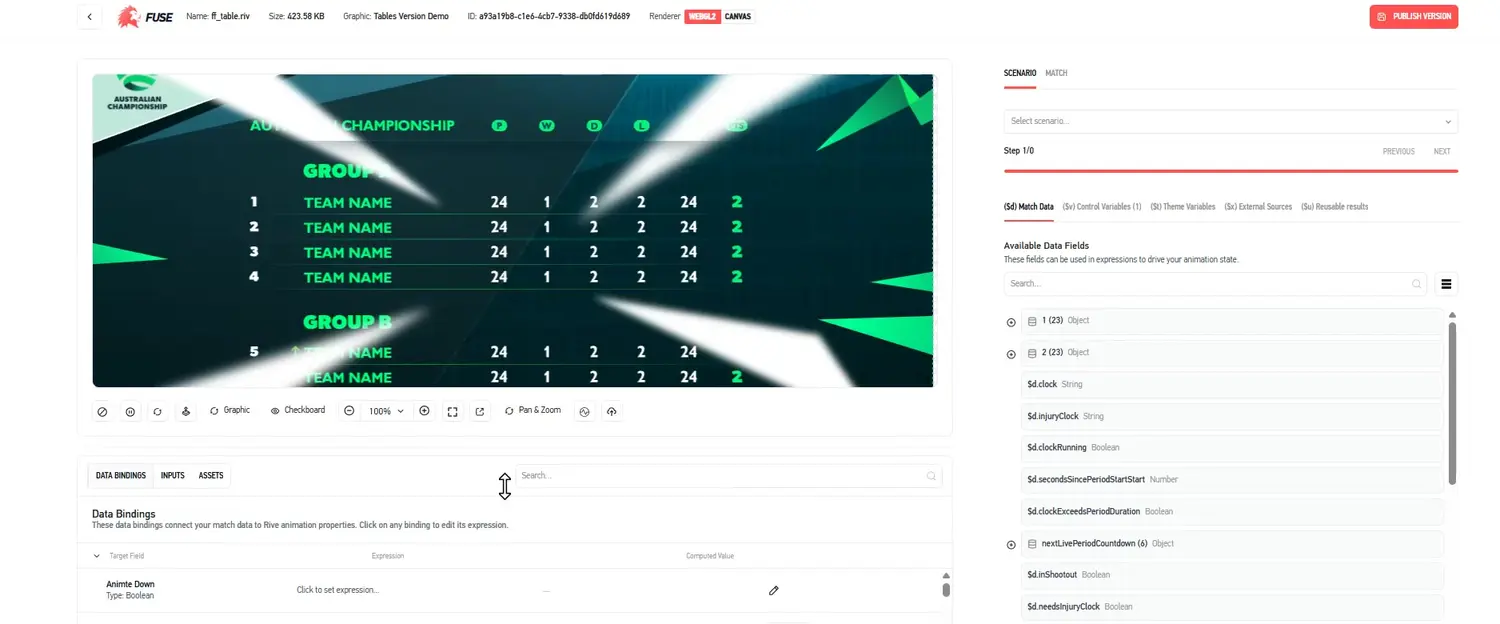
Create a new graphic in the theme and drag the file across from your designer. Fuse reads it and lists every field it can drive.
02
Bind the fields
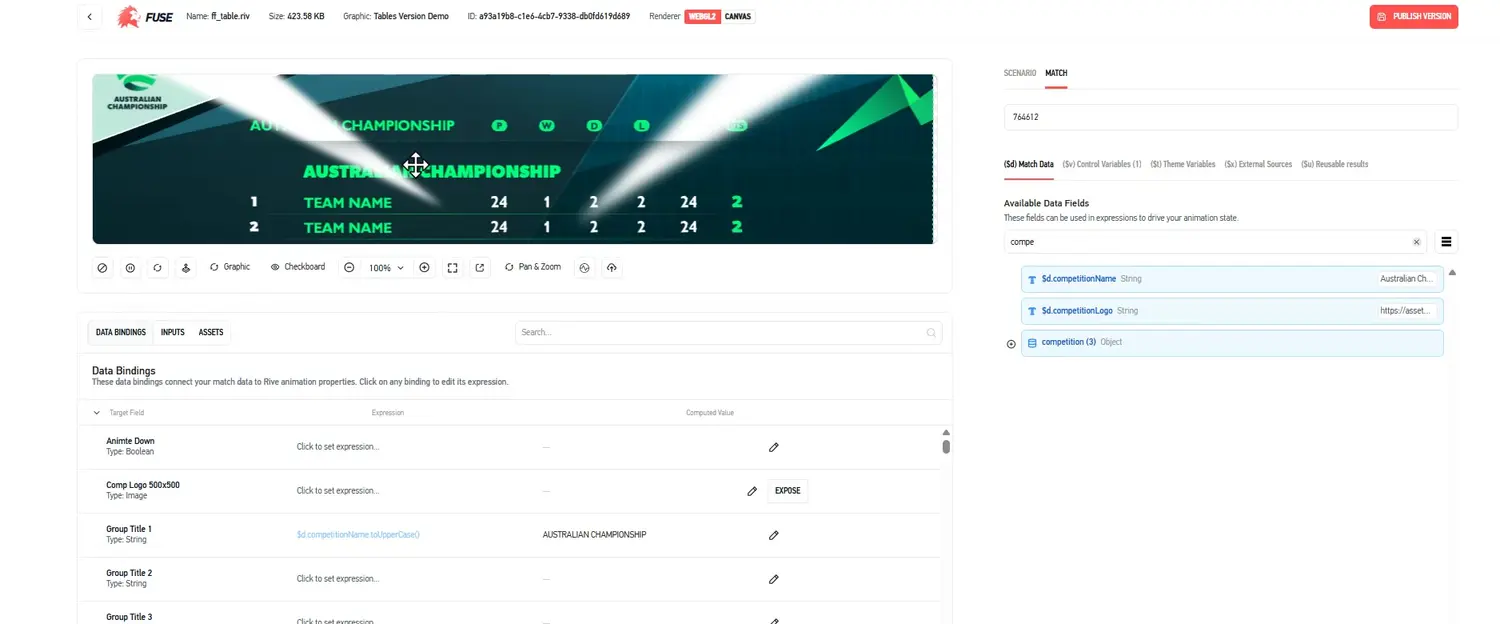
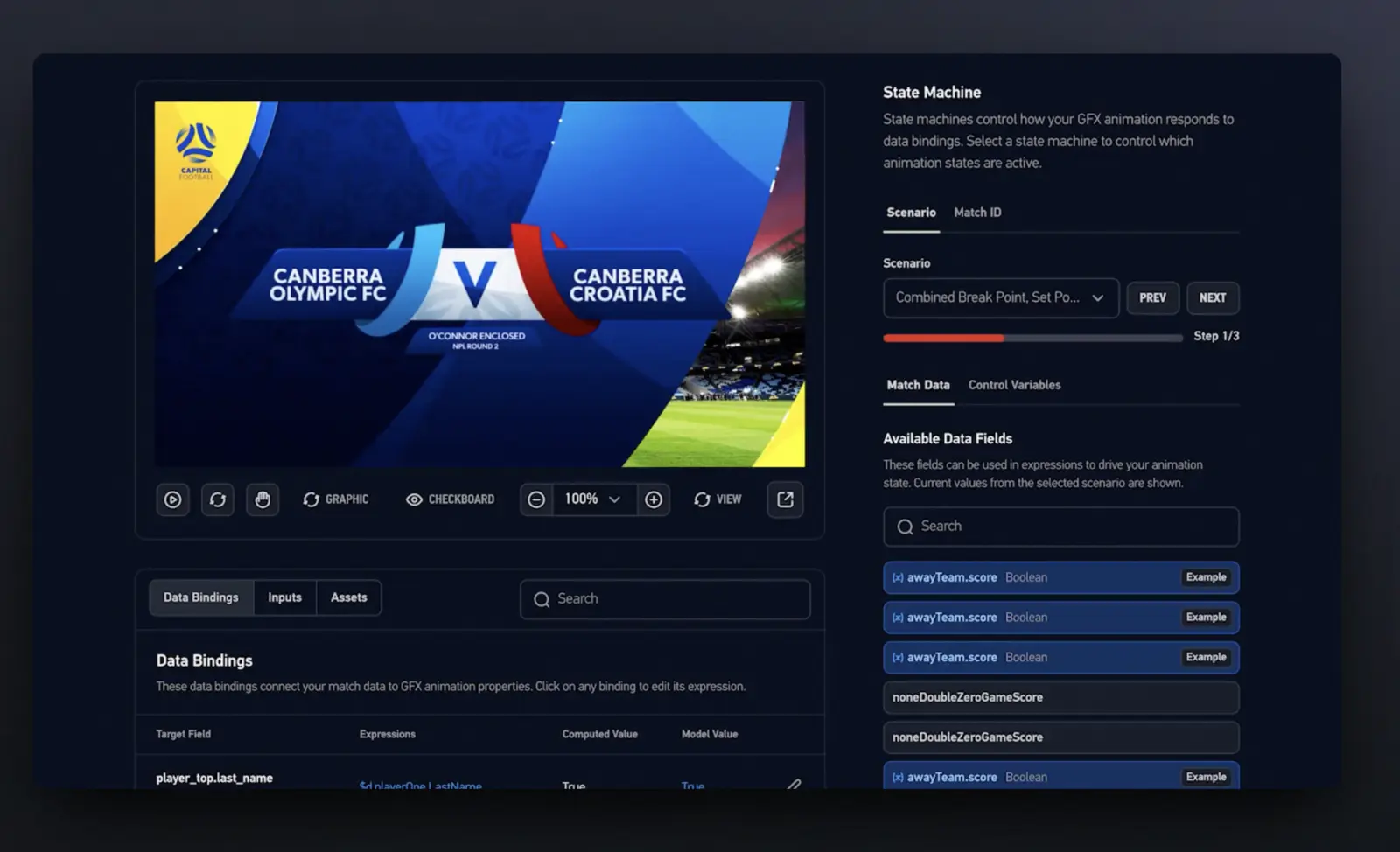
Point each target at what should fill it. Hard text where it never changes, an expression where it does. Load a real match ID and the graphic fills with that fixture while you work, so you are not building against dummy data.
03
Add control variables
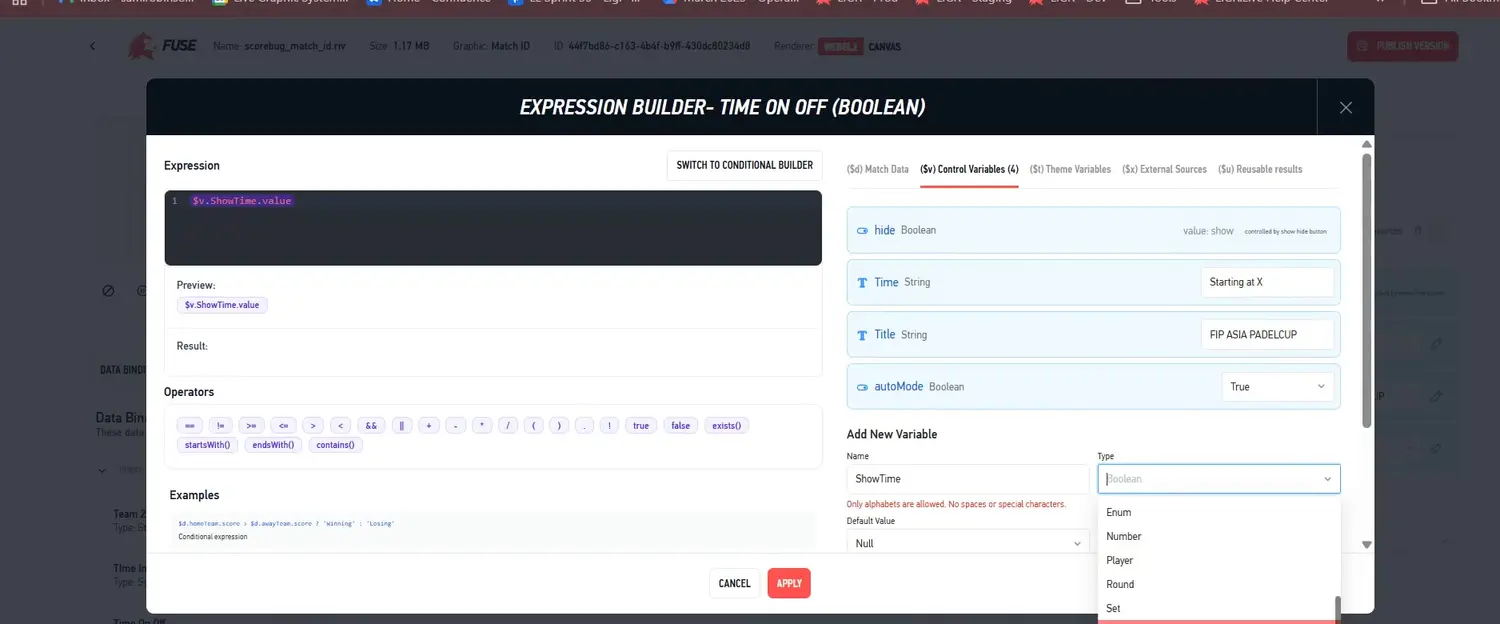
Anything the operator should be able to change becomes a control variable. A kick-off time you do not always know, a team toggle, a colour inversion for a white-on-white kit. Set the type and the default, and it appears in Control Room.
04
Connect external data
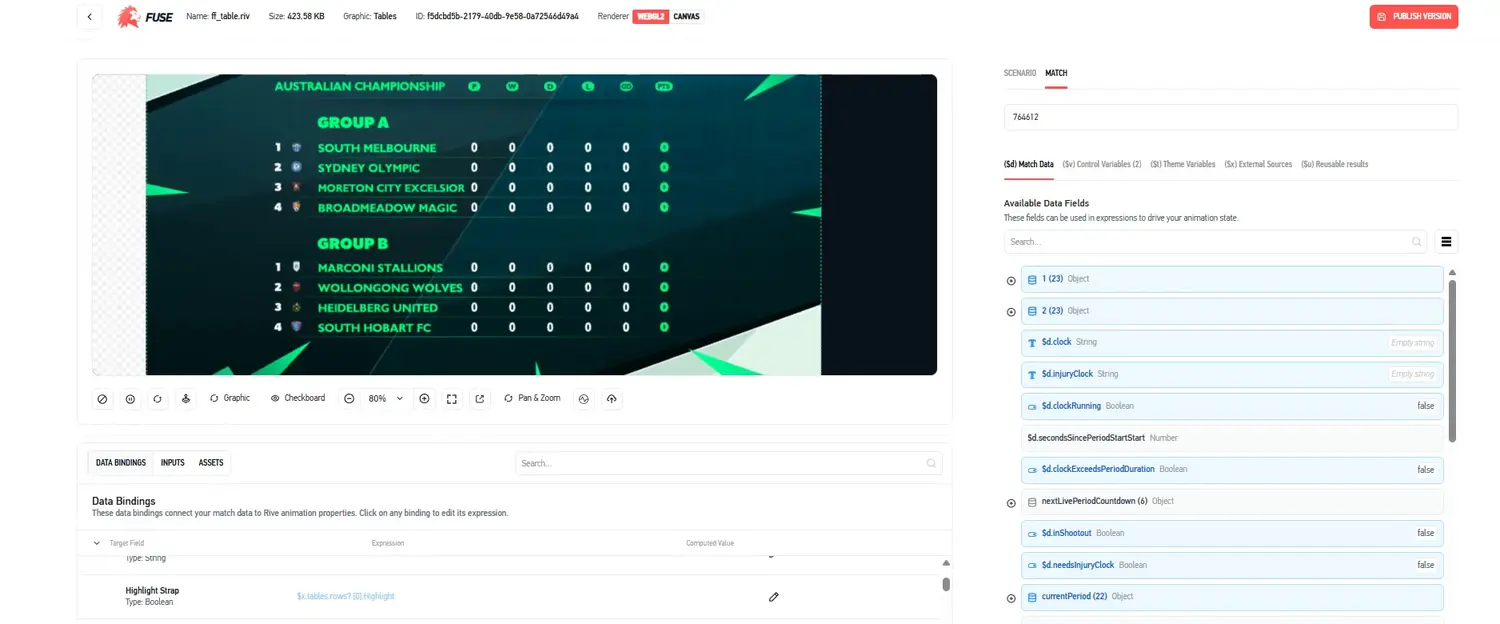
For anything the match feed does not carry — a ladder, a route to the final, a rundown — add an external data source. Upload a sheet or paste the rows, and every bound field updates with it.
What you can drive
Data bindings
Every field in the Rive file appears as a target. Bind it to hard text, to live match data, or to an external source.
Expressions
Compute the value rather than typing it — uppercase a competition name, filter stats to a set, fall back when a field is empty.
Control variables
Decide what the operator can change on air. Boolean, string, number, team, player, round or set, each with a default.
External data sources
Ladders, brackets, rundowns. Upload a file or paste the rows straight in, publish, and the graphic reads from it.
Player data and images
Squad data and player imagery bound to the graphic, so a name change or a new headshot does not mean a rebuild.
Scenarios
Step the graphic through its states against real match data before you publish, rather than finding out on air.
Expressions are just text
Expressions export to a plain text file. That sounds small, and it is the single biggest time-saver in the tool.
Moving a graphic between themes stops being a rebuild — export from one, import into the other, sense-check the fields that differ. And because it is just text, bulk changes are a find-and-replace rather than an afternoon: filter every stat to a set instead of the whole match, uppercase every text field, swap a data source across forty bindings. Edit it by hand or hand it to an LLM, then import it back and check what it changed.
Light or dark
Designers live in this tool for hours at a time, often in a gallery or a truck where a white screen is the last thing anyone wants. Fuse runs in either theme.
How this connects
Fuse is part of LIGR Pro. Studio runs on the theme library — pick a theme, set your look, go live. Fuse is for when the graphic needs to hold logic that a theme cannot: your own Rive files, your own data, your own rules about what shows when.
- Broadcast Graphics — the module Fuse publishes into
- Control Room — where the control variables you expose end up
- Custom broadcast packages — client work built this way
- LIGR Pro — what else comes with it
Frequently asked questions
What is Fuse?
Fuse is the LIGR broadcast graphics builder. You import a Rive file, bind its fields to live match data with expressions, expose control variables to operators, and publish the result as a theme.
Do I need to write code to use Fuse?
No. Fields are bound with expressions rather than code, and the control variables you expose become toggles and dropdowns for the operator in Control Room.
What data can a Fuse graphic read?
The LIGR match data hierarchy, from competition down to individual player records. For anything the match feed does not carry, such as a ladder, you can connect an external data source.
Is Fuse part of Studio or Pro?
Fuse is part of LIGR Pro. Studio runs on the theme library: pick a theme, set your look and go live. Fuse is for when a graphic needs to hold logic a theme cannot, meaning your own Rive files, your own data and your own rules about what shows when.
Where do graphics built in Fuse end up?
They publish into the Broadcast Graphics module, and the control variables you expose appear in Control Room for whoever is running the match.
What do I need before I start?
A Rive file with the fields you want to drive exposed, and LIGR Pro. From there it is import, bind, expose the controls you want, and publish.
Ready to elevate your sports broadcast?
Join hundreds of organisations using LIGR to deliver broadcast-quality production — from local leagues to national federations.