The operator's position, in a browser
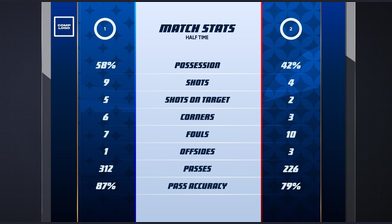
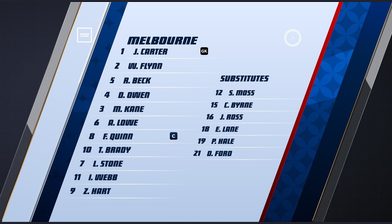
Every graphic for the match, in one browser tab, laid out the way your operator actually works, with no hardware and nothing to install.
Why it matters
The usual way to run graphics for a live match is a machine at the venue or in a truck, a licensed seat, and someone trained on that specific system. It is why a fixture without a crew gets no graphics at all, and why the operator has to be wherever the hardware is.
Control Room is that operator position in a browser. It opens against the theme your competition already uses, shows the graphics built for it, and takes them to air over the same cloud render path that feeds the stream. The operator can be at the ground, at home, or running several matches from one desk. The production link drops into vMix, OBS or anything else that accepts an HTML overlay, and there is an NDI app if you would rather it appear on the network.
Control Room is part of LIGR Broadcast GraphicsWhat's in the box
Sections you define
Lower thirds, full frames, scorebug, pre-match, promos, tags. Name them after your rundown and colour-code them so the operator finds them at a glance.
Variables, exposed on your terms
Decide which fields the operator can touch, whether each is a dropdown or a button, whether it shows or hides by default, and what it defaults to.
Context
Link a graphic to a goal, a card, a substitution or a player. Click the event and only the graphics that fit surface, already populated.
Preview that moves
A preview window you drag and resize, showing the graphic against the real match data before anyone sees it.
To Air
One button to air, one to clear. A red outline marks what is live and the on-air indicator says what is out.
Built for a rundown
Search by name or item number, reorder by dragging, set keyboard shortcuts. However complex the show gets, the operator can still find item 11a.
Watch it work
The whole match, in one browser tab
Every graphic for the match laid out the way your operator works, a rundown built from your theme, a goal graphic that fills in the scorer, and one click to air.
0:38, with sound.
Where the graphics come from
Nothing in a control room is authored in the control room. The graphics are drawn in Rive, bound to the match data in FUSE, and published into LIGR against a theme. What the operator can touch was decided back in FUSE, when the control variables were created: a name to override, a subtitle, a colour inversion for a white-on-white kit, a stat to swap.
That is why two graphics in the same room can feel completely different to operate. One exposes a single event and nothing else. Another exposes a team button, two subtitles and a pair of inversion toggles. The control room only ever shows what the graphic was built to expose, which is what keeps an operator from breaking a brand on air.
01
Rive
The graphic is drawn and animated, with its states and transitions.
02
FUSE
Fields are bound to live match data, and control variables are created: the things an operator will be able to change.
03
Theme
The finished graphic is published into LIGR against a theme. That theme is what a competition runs on.
04
Control Room
Opened against that theme, it lists every graphic published to it and surfaces exactly the control variables FUSE exposed.
One theme, many rooms. One room, many feeds.
A control room is bound to one theme, and an organisation runs as many rooms off that theme as it has jobs. A world feed, a unilateral feed, a big-screen feed in the stadium: three rooms, three rundowns, three sets of sections, one set of graphics underneath.
It also works the other way. One room can drive several overlays at once, because the overlay is what carries the output and the room is what drives it. Set it at competition level and every fixture inherits it, or attach it per match when one game needs something different.
Building the graphics and their variables is FUSEBuilding one
Six steps, and only the first two happen once.
01
Create the control room
Under Themes, open Control rooms and create one against the theme you want it to use. Organisations run several, such as a unilateral feed, a world feed and a big-screen feed, all off the same theme.
Themes › control rooms. A name, and the published theme the room runs against. 02
Attach it to the match
Add an overlay to the fixture, or set it once at competition level so every match inherits it. Copy the production link into vMix or OBS, take SDI off your card, or run the NDI app.
Assets, competitions, streams and overlays. Each feed mapped to its own overlay and control mode. 03
Build your sections
Add the sections your rundown uses and give each one a colour. This is the part that makes the room yours rather than a generic panel.
Control Room, adding a section with its name and colour code. 04
Add graphics from your theme
Every template published to the theme is here: lower thirds, full frames, tables, stats, idents. Search, pick, name it, drop it in a section.
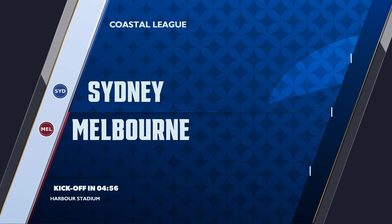
Control Room › add graphic. The templates published to the Coastal League theme. 05
Expose variables and set context
Choose what the operator controls and how. Then point the graphic at an event type, so clicking a goal in the match brings up the goal graphic with the right player already in it.
Control Room, a graphic's variables. The event it reads, shown to the operator as a dropdown. 06
Preview, then take it to air
Check it against the live data in the preview window, then press To Air. Clear it the same way.
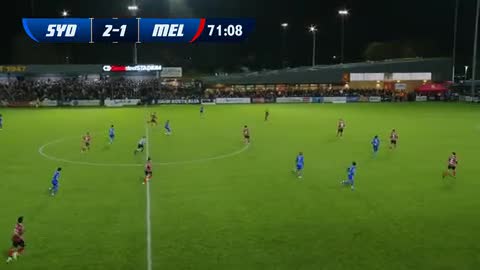
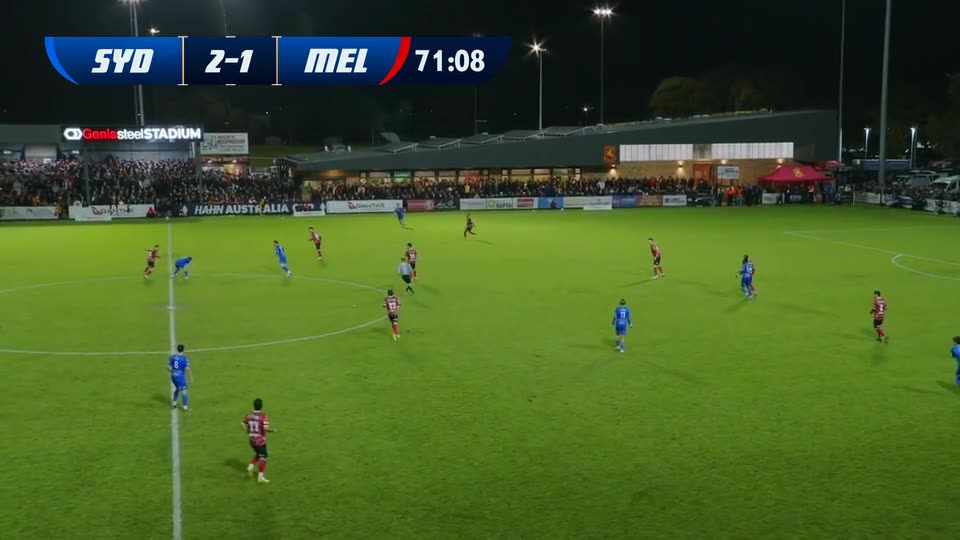
Control Room › event context. The 67th-minute goal selected and the goal scorebug open, populated and playing in the preview.
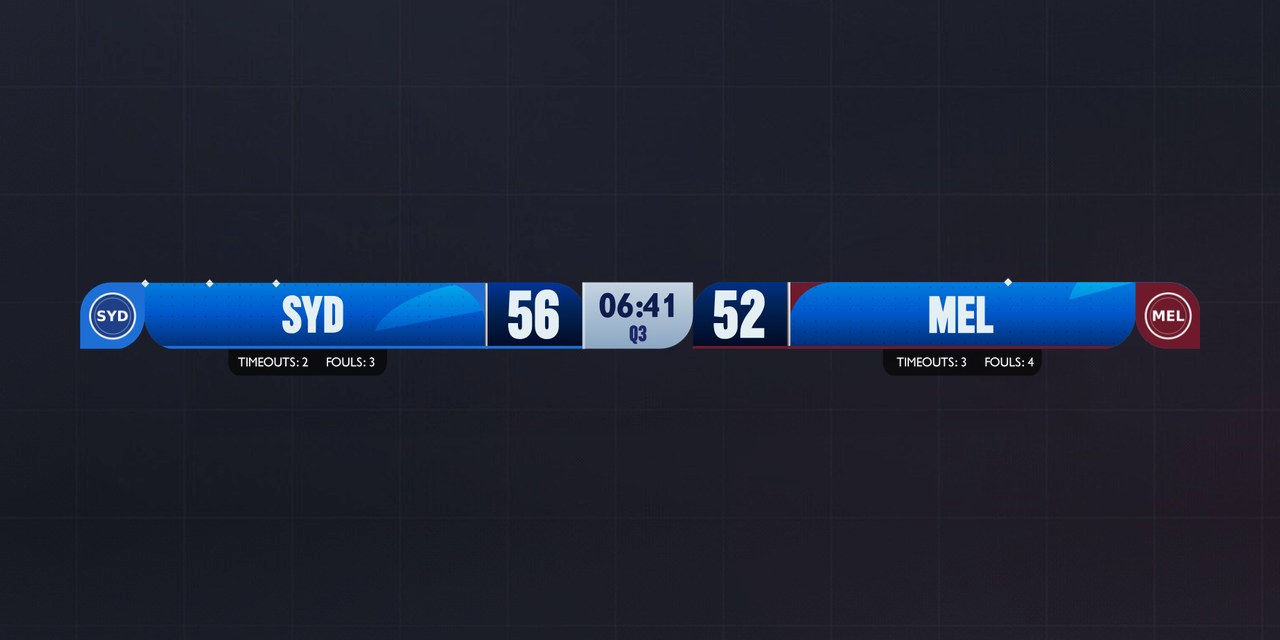
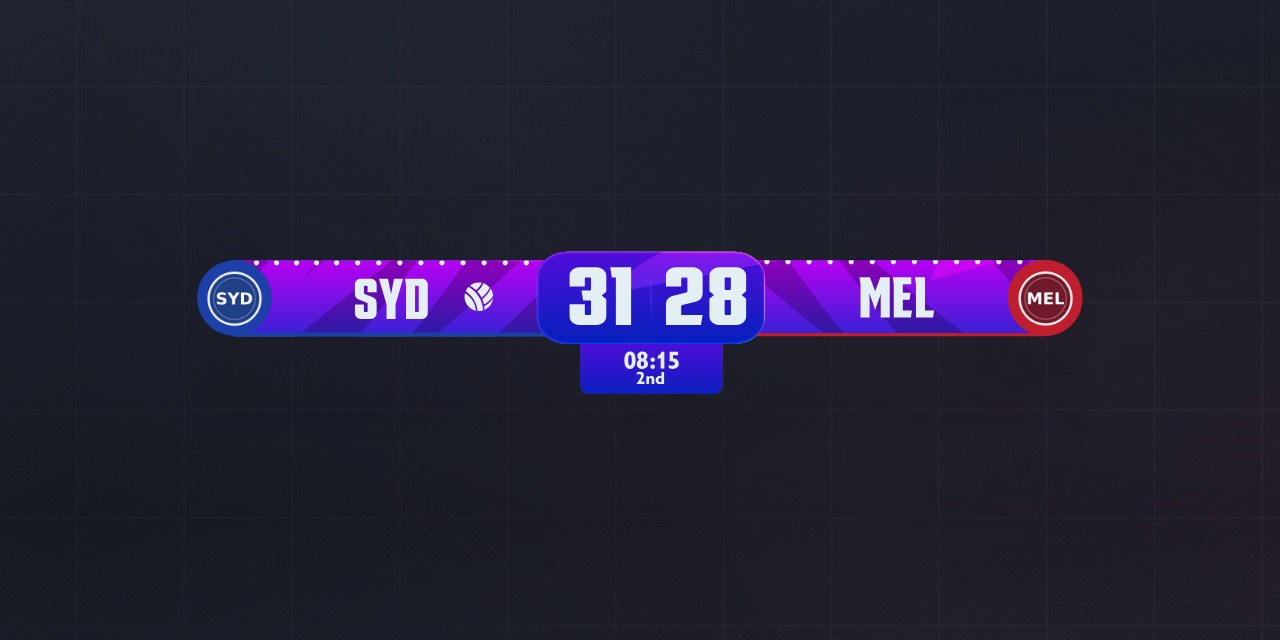
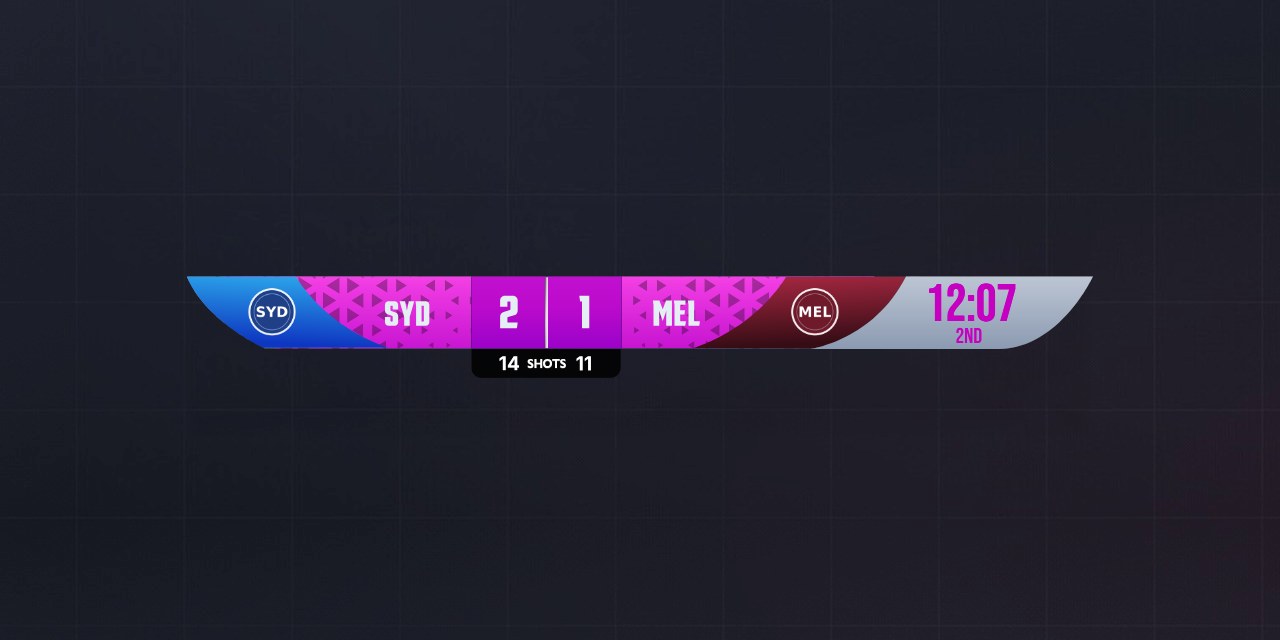
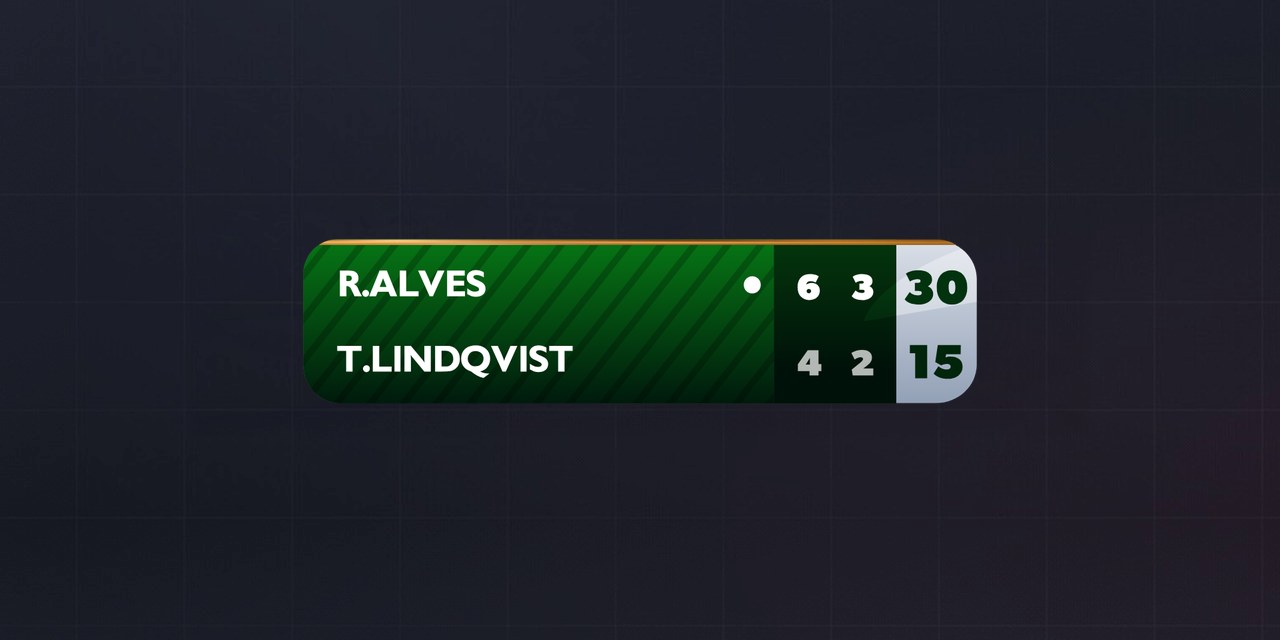
As simple or as deep as the show
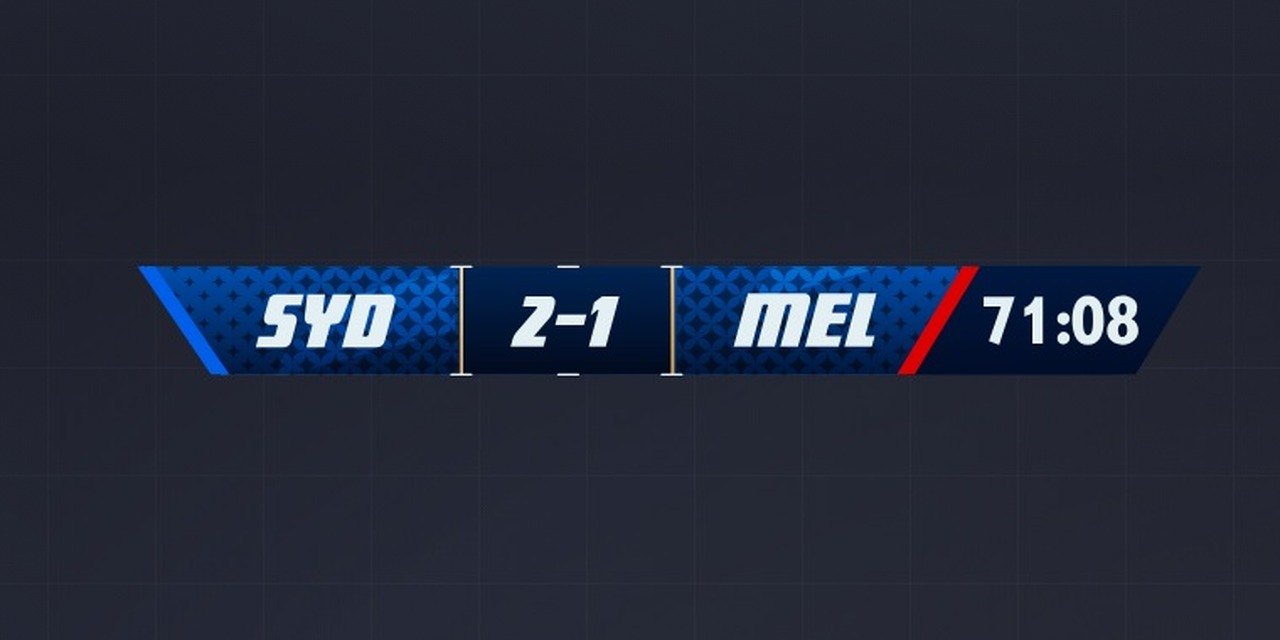
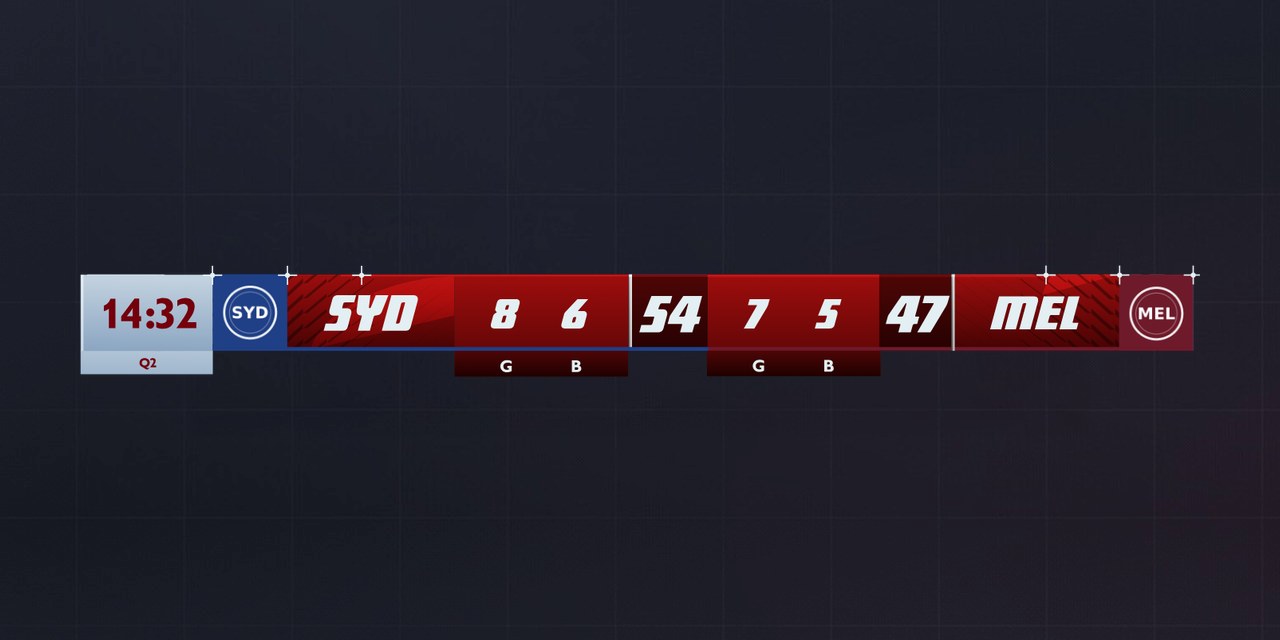
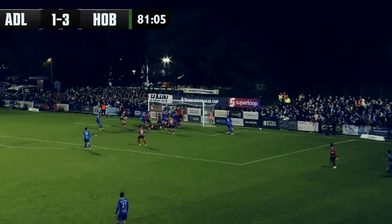
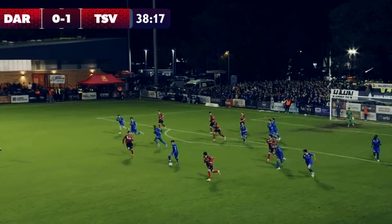
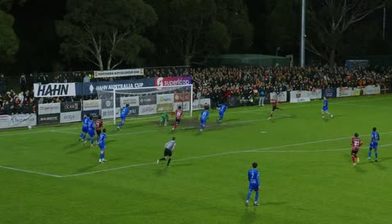
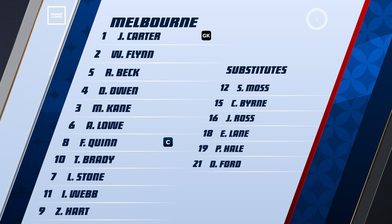
A club stream might run three sections and a scorebug. A tournament runs talent names, press positions, into-break graphics, tags for the analysts, in-game, teams and tables, and a wall of promos, every item numbered to match the rundown and searchable by that number when the director calls it.
Under the hood
The graphics themselves are drawn in Rive and published to your theme through FUSE, with their fields bound to the match model rather than typed in. Control Room does not send pictures anywhere. It writes to that model, and the renderer already attached to your output composes the frame. That is why an operator on a domestic connection can run a broadcast without their upload speed mattering, why a manual trigger and an automated sequence can share one output without colliding, and why the data behind a graphic can come from live scoring, a provider feed or a spreadsheet without the graphic knowing the difference.
At a glance
Plans
Included on LIGR Studio and LIGR Pro.
Building your own
Custom sections, variables and context are part of FUSE, on Pro.
Try it
Open Control Room on any fixture in your workspace.
Put your next match on air
Tell us about your competition and we’ll show you how it looks with LIGR.