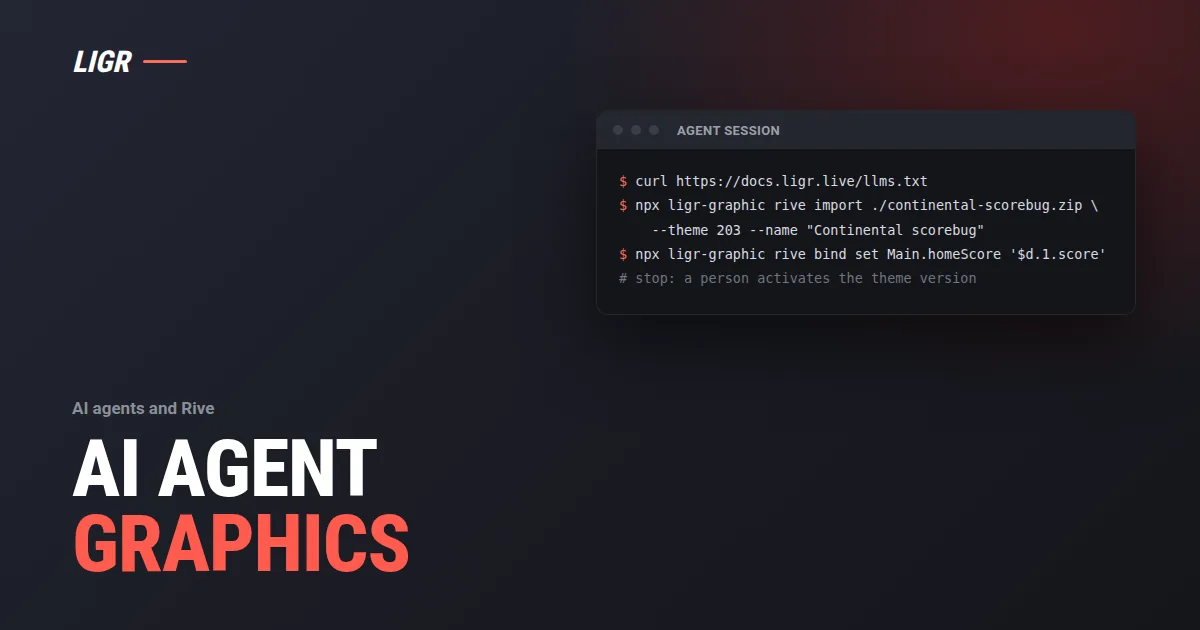
An AI agent can take a native Rive graphic from a project folder to a published theme version on LIGR, using the same CLI and REST operations a developer uses. The person decides what to make and when it goes on air.
An AI agent can build and publish a native Rive broadcast graphic on LIGR with the same tools a developer uses. It compiles a Rive project with the Rive CLI, imports it into a theme with the ligr-graphic CLI, binds live match data, checks the bindings and publishes a theme version. The LIGR docs serve llms.txt, a Markdown twin of every page and six rules an agent must follow. This guide walks that path for AI broadcast graphics and marks where a person makes the call.
Beta. Native Rive graphics and their REST routes are in beta, as are the Graphics SDK, the ligr-graphic CLI and the Themes operations under /v2/themes. The REST shapes can change between minor versions, and every response from a beta route carries X-Ligr-Beta: true. Test every graphic on the preview overlay of a test match before you use it on air.
Who does what
This is for developers and integrators handing graphics work to a coding agent, and for designers who want to know what happens to their Rive work afterwards. The person decides what is worth making, which theme it belongs in, and when a new version reaches an overlay. The agent does the checkable steps in between: compile, import, bind, evaluate, publish. The LIGR rules for agents draw the same line: never publish a theme version with activate: true during a live match, and do it only when a person asks for exactly that.
What the docs give an agent
The For AI agents page is the entry point. Its premise: with the index and an API key, an agent has what it needs to work through the API. Start with the index:
curl https://docs.ligr.live/llms.txt/llms.txt names every machine-readable file the site serves. These are the entry points, exactly as the docs list them:
| URL | What it is |
|---|---|
/llms.txt | The index of the files below |
/llms-full.txt | Every written page, concatenated, in sidebar order |
/llms-small.txt | The same set, with the notes and the tips removed |
/_llms-txt/get-started.txt | The Get started pages only |
/_llms-txt/webhooks.txt | The Webhooks pages only |
/_llms-txt/graphics-sdk.txt | The Graphics SDK pages only. Beta |
/_llms-txt/rive-graphics.txt | The native Rive import and lifecycle pages only. Beta |
/_llms-txt/control-room.txt | The Overlays & control room pages only |
/_llms-txt/guides.txt | The Guides only |
/_llms-txt/for-ai-agents.txt | The For AI agents page only |
/openapi.json | The OpenAPI 3 specification |
/<content page>.md | The Markdown source of that page, front matter included |
/changelog/rss.xml | The changelog as an RSS feed |
The llms files hold the written pages only. For endpoints, parameters and response shapes, point the agent at /openapi.json or the .md twin of an endpoint page.
The rules an agent must follow
The docs list six rules. Put them in the agent's instructions as the docs state them:
- Send every request to the REST base URL of your environment. Production is
https://api.ligr.live/rest. If the user gave you a non-production environment, use its API origin. Never send a key from one environment to another environment. - Send an API key, never a JWT. REST routes do not accept dashboard or overlay JWTs. Use
Authorization: Bearer <api key>. - Read before you write. Fetch the match, the theme or the overlay first. An id from another organisation returns 404.
- Respect
409 LOCKED. A person has the graphic open. Wait, then retry. Do not delete it and create it again. - Stop on
x-ligr-rate-limit-observe. Treat that header as a 429, even though the request succeeded. - Never publish a theme version with
activate: trueduring a live match. Do it only when a person asks for exactly that.
Rule 4 matters more than it looks. A builder session that holds the edit lock answers 409 LOCKED, and the message names the editor. The lock is how LIGR protects that person's work, and the right response is to wait.
What you need before you start
- A theme your organisation owns. Create it with
npx ligr-graphic theme createorPOST /v2/themes. During the beta an organisation can own up to five themes. - A write API key with
themes:readandthemes:write. Keep it inLIGR_API_KEYand never print it. - The
ligr-graphicCLI. Install it with the commands on the Graphics SDK page. - Rive CLI 1.0.1, if you compile the project locally. Install it through Rive's supported distribution channel.
A LIGR key is not tied to one theme. Scopes are per resource, and a key acts for the whole organisation within its scopes, so themes:write reaches every theme the organisation owns. The docs call theme-writing API keys trusted authoring credentials. Give an agent only the themes scopes and a short expiry: 7, 30, 60 or 90 days, one year, or a custom date (the default is 30 days). An expired key returns 401 with API_KEY_EXPIRED. See Authentication for rotation.
Step by step: from a Rive project to a published theme version
The worked example is the licensed Continental scorebug from the Local RML scorebug project page, a complete RML project. RML means Rive Markup Language. The project ZIP contains rive.yaml, scene.rml, the Barlow Semibold font and its licence. The 229-line scene.rml holds one scorebar, eight bound text fields and one visibility layer, on a transparent 1920 by 1080 artboard.
Point the agent at the docs
Give the agent /llms.txt, the six rules and the key in LIGR_API_KEY. Tell it the graphic, the theme id, and that it stops before activation.
Keep the Rive project and the LIGR configuration apart
RML defines authored properties and animation behaviour. A separate LIGR configuration connects those properties to LIGR data. The docs are explicit: do not put LIGR sporting expressions into RML property definitions. The look belongs in the project. What live data drives it belongs in the configuration.
Compile and inspect with the Rive CLI
The Rive CLI runs on your machine and needs no LIGR key. The docs pin it to version 1.0.1 and run it directly against the extracted project. Inspection must report artboard Main, state machine Broadcast, view model Main and default instance Default. If not, the agent stops and reports.
export RIVE_BIN="${RIVE_BIN:-$HOME/.rive/bin/rive}"
test "$("$RIVE_BIN" --version)" = "rive 1.0.1"
(
  cd "$PROJECT"
  "$RIVE_BIN" . --verify --format=json
  "$RIVE_BIN" inspect . --json
  "$RIVE_BIN" . --once --format=json
)
Compiling locally is optional. LIGR accepts a .riv runtime, a .rev file, a ZIP with either, or a complete RML project ZIP, and compiles .rev and RML projects itself during preparation. Check GET /v2/themes/{themeId}/rive-graphics/capabilities before each import. If sourceImports is false, compile externally and upload the .riv, which is also the route if you do not want source uploaded.
Import into the theme
Now the ligr-graphic CLI takes over. One command uploads the file, starts preparation, waits for the result and creates the graphic. It writes rive.json with the theme id and the graphic id, and later commands read that file. The Command line page lists every command.
export LIGR_API_KEY="<your write key>"
npx ligr-graphic rive import ./continental-scorebug.zip \
  --theme 203 --name "Continental scorebug"
LIGR never guesses. An archive with more than one project answers with a list of entries, and the agent passes one exact entry with --select. A file with more than one artboard pauses the import until the agent runs npx ligr-graphic rive settings select --artboard 0 --state-machine 0. A real choice goes back to the person.
Source retention is a person's decision. It defaults off. Add --retain-source to keep the editable source, and read Source files and privacy first.
Bind live data
This is the LIGR configuration from the worked example, shortened. Each binding connects a Rive property to a LIGR expression. $d.1.score is displayed team one's score, and $v.stage.value is a control variable an operator sets.
{
  "selection": { "artboardIndex": 0, "stateMachineIndex": 0 },
  "configuration": {
    "renderer": "webgl2",
    "controlVariables": [{ "id": "stage", "name": "stage", "type": "string", "defaultValue": "FINAL" }],
    "bindings": [
      { "id": "Main.on", "expression": "!$v.hide.value" },
      { "id": "Main.homeScore", "expression": "$d.1.score" },
      { "id": "Main.awayScore", "expression": "$d.2.score" },
      { "id": "Main.stage", "expression": "$v.stage.value" }
    ]
  }
}
Note the first binding. hide is reserved: the platform sets it on every show and hide command, so it is never declared in controlVariables. Bind visibility to it. Otherwise show and hide answer 200 and change nothing, a silent failure an agent will not spot unless told.
To change many values at once, the agent pulls the working configuration into rive.json, edits it, and previews the change:
npx ligr-graphic rive pull
# edit the "config" block of rive.json
npx ligr-graphic rive push --dry-run
npx ligr-graphic rive push
--dry-run prints the operations and sends none, which makes it a natural review point for a person. rive push sends one operation for each change, and a push is not atomic: if one operation fails, the ones before it stay applied. Run rive pull, then push again. A draft that changed in the meantime answers 409 TARGET_CHANGED.
Check the bindings and preview the draft
rive eval exits 0 only when every binding resolves, so an agent can use it as a gate. rive preview plays the working draft against a named demonstration scenario.
npx ligr-graphic rive preview --scenario "First Half Goal Sequence" --open
npx ligr-graphic rive eval --scenario "First Half Goal Sequence"
Pick a scenario for your sport. List the names with GET v2/scenarios/{sport}.
Know what the check covers. Today the evaluate route runs in static mode only: it checks that each expression parses and that every $v and $u reference exists. It never runs the expression, so to see real values, render the graphic. List scenario names with GET v2/scenarios/{sport}.
A runtime that references an image outside the file marks it unresolved and renders without it. Images, preview and evaluate shows how to supply it: PNG, JPEG or WebP, up to 25 MB.
Publish a graphic version, then a theme version
A graphic version freezes the runtime bytes, playback images and configuration. The agent publishes one with POST v2/themes/$THEME_ID/rive-graphics/$GRAPHIC_ID/versions, then publishes a theme version that pins it. Publishing a theme version does not activate it unless you ask.
curl -X POST 'https://api.ligr.live/rest/v2/themes/203/versions' \
  -H "Authorization: Bearer $LIGR_API_KEY" \
  -H 'Content-Type: application/json' \
  -d '{
    "graphics": [
      { "graphicId": "c1e2a9d0-5b7e-4f60-9c3a-2d1f0e8b7a64", "version": 5 }
    ]
  }'
{ "version": 12, "activeVersion": 11 }The example IDs come from the docs. Use your theme ID, $GRAPHIC_ID and the version that the graphic publish returned. Every graphic not listed is pinned at its latest published version. The active version is still 11, so nothing changed on air. That is the state an agent hands back.
With the CLI, npx ligr-graphic rive publish --theme-version publishes the graphic version and a theme version that pins it, without activation. That is the command an agent runs.
A person activates, at the right moment
Activation is a separate request, and the customer dashboard does not expose it: use the CLI or REST. With the CLI, run npx ligr-graphic theme activate --theme 203 --version 12. All competitions using the theme share its active version. Existing overlay pages keep their loaded version until reloaded: reload the preview overlay first, then the broadcast source when the operator is ready.
To roll back, activate the earlier snapshot. It restores that exact graphic selection:
npx ligr-graphic theme inspect --theme 203 --version 11
npx ligr-graphic theme activate --theme 203 --version 11
The full sequence, including rollback and errors, is in Publish a theme version.
What stays editable after an agent publishes
- The working graphic stays editable. A working graphic is mutable. Every change the graphics builder makes to it is one REST operation, so the agent and the builder edit the same draft through the same operations, and the builder's edit lock applies to both.
- Published versions do not change. Each graphic publication creates an immutable version. Its runtime, playback images and configuration stay pinned to that version.
- The
.rivruntime is kept exactly. LIGR stores the runtime bytes unchanged, and the builder settings menu offers Download runtime file (.riv) for a version. - Editable source is kept only if you choose it. With retention on, LIGR stores the exact uploaded
.revfile or complete ZIP, and you can download that original for the version. LIGR never regenerates an editor file, and it does not promise a byte-identical.revto RML to.revround trip. - A theme can insist on source. A theme owner can turn on Require editable source for Rive graphics. Runtime-only uploads are then refused with
SOURCE_REQUIRED.
The practical point for a design team: the Rive project is yours. The LIGR data bindings live in LIGR's configuration, not in the Rive file, which is why the two stay separate in step 2. The docs say to keep the version's configuration and playback images when moving that runtime to another renderer. Keep your own copy of the project, or turn on retention before the upload.
Where this goes next
Operators still need a control room and presets to put the graphic on air. The control room setup guide covers that through the API, and publishing graphics through the API covers code graphics, which run beside Rive graphics in the same theme. The same six rules apply.
Frequently asked questions
Can an AI agent build broadcast graphics on LIGR?
Yes. The LIGR docs serve llms.txt and a Markdown twin of every page, so an agent with an API key can compile a Rive project, import it with ligr-graphic rive import, bind live data, check it with rive eval and publish a theme version. Native Rive graphics are in beta.
Which API key scopes does an agent need for Rive graphics?
A write key with themes:read and themes:write. Scopes are per resource, not per theme. A key belongs to one organisation and acts across it within its scopes, so a themes:write key can write to every theme the organisation owns.
Can the agent put a new graphic on air by itself?
It should not. The LIGR rules for agents say never publish a theme version with activate: true during a live match, and do it only when a person asks for exactly that. Publishing a theme version without activation changes nothing on air.
Can I still edit the graphic after an agent publishes it?
Yes. The working graphic stays mutable, and you edit it through the same operations the graphics builder uses, from the CLI or REST. Published versions are immutable. LIGR keeps the exact .riv runtime, and keeps your editable source only if you turn on retention before the upload.
Is this the same as the Graphics SDK?
No. Native Rive graphics do not use @ligrsystems/graphics-sdk or the ligr.gfx.v1 protocol. The Graphics SDK is for code graphics written in HTML, CSS and JavaScript, which run beside Rive graphics in the same theme.
Hand your agent the docs
Start with the For AI agents page: the machine-readable entry points, the Markdown twins and the six rules.