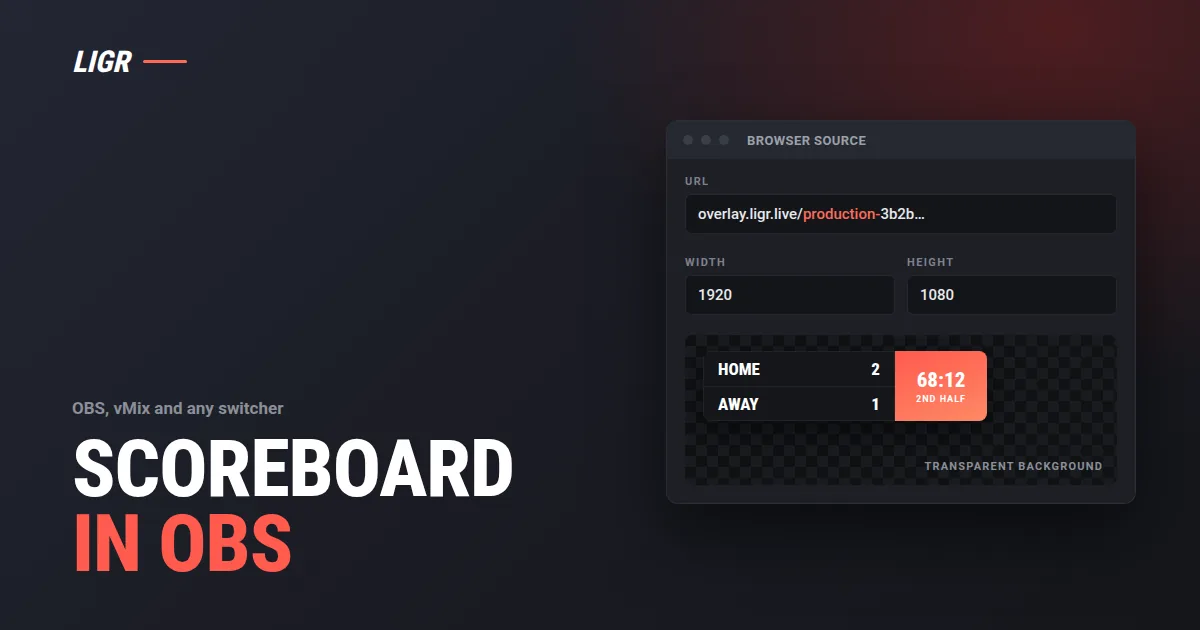
LIGR graphics are an HTML5 web page with a transparent background. Anything that can show a web page, or take an NDI or SDI feed, can put them on air. One link, pasted once, and your OBS, vMix or Wirecast show gets a live scoreboard, lower thirds and sponsor graphics driven by real match data.
LIGR graphics are an HTML5 web page with a transparent background. Anything that can show a web page, or take an NDI or SDI feed, can put them on air: OBS, vMix, Wirecast, TriCaster or a hardware vision mixer. The method is the same everywhere. You paste one link.
Most clubs already have a way to make a stream. A laptop running OBS, a vMix machine in the commentary box, a Wirecast rig, or a hardware switcher in a truck. What they usually do not have is graphics that know the score. They have a static PNG, or a scoreboard somebody types into, or nothing at all.
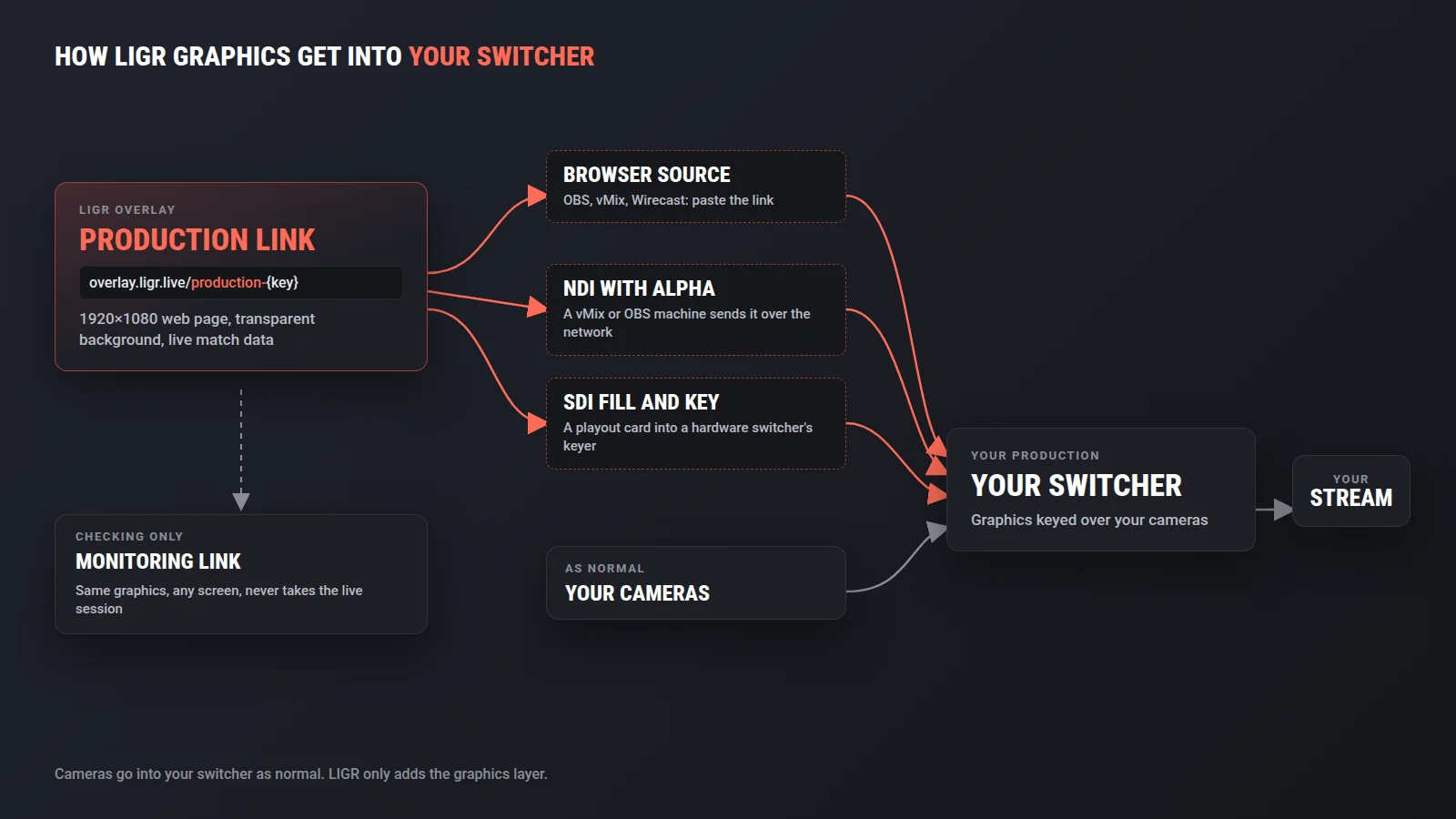
A LIGR overlay fixes that without changing how you produce. You keep your cameras, your switcher and your stream destination. LIGR adds one layer on top: a web page at a URL that renders your scoreboard, clock, lower thirds, stats and sponsor graphics, and updates them from live match data or from an operator in the LIGR Control Room.
This guide covers how that page gets into your production, switcher by switcher, and what to check before a match.
Two ways to use LIGR with your switcher
LIGR connects to OBS and vMix in two directions. They solve different problems, so pick the one that matches where you want the finished picture to be made.
| LIGR graphics into your switcher | Your switcher's output into LIGR | |
|---|---|---|
| What travels | A web page (the overlay) into your switcher as a browser source, or as NDI or SDI | Your program feed into LIGR over RTMP or SRT |
| Where graphics are composited | In your switcher | In the LIGR cloud |
| Who sends the stream to YouTube or Facebook | Your switcher | LIGR, to as many destinations as you configure |
| Best for | Crews who already produce in OBS, vMix, Wirecast or a hardware switcher and want graphics in their own mix | Crews who want LIGR to handle graphics, recording and distribution |
| Guide | This page | OBS, vMix, Wirecast |
The rest of this guide is the first column: LIGR graphics as a layer in a production you already run.
How it works
An overlay is the graphics session for one match. It lives at a URL of this form:
https://overlay.ligr.live/production-{key}
The page is 1920 by 1080 with a transparent background. When your switcher loads it, the video underneath shows through everywhere a graphic is not. The page renders in Chromium, the same engine behind the browser source in OBS and the web browser input in vMix, so the page looks the same in your switcher as it does in the LIGR preview. Keep OBS or vMix reasonably up to date: a very old build carries an old browser engine that can draw some effects differently.
Graphics on that page are driven from three places, and you can mix them:
- Match data. Scores, clock, cards and scorers from the LIGR LiveScore app or a connected data feed.
- Auto mode. Graphics fire themselves when match events are logged, so a goal brings up the scorer without anybody pressing a button.
- The Control Room. An operator fires presets by hand from the LIGR Control Room, from any browser.
Your switcher does not need a plugin, a key or a login. It needs to show a web page.
Step 1: Get your production link from LIGR
Create the match
Create your match with its teams and details, and make sure you have a control room set up for your theme.
Add an overlay
In Matches, open the three-dot actions menu for the match and select Add Overlay. Choose the control room, name the overlay, set the ad type (Brands, Free Tier or No Brands) and choose whether Auto Mode is on. Select Create.
Copy the production link
From the three-dot menu next to the overlay, open Links and copy the production URL. The same links sit at the top of the Control Room. Copy the monitoring URL too. You will use it to check graphics without touching the live session.
The production link is live the moment a switcher loads it. Treat it like a stream key: one per match, pasted into one switcher, not shared around.
Step 2: Add the overlay to your switcher
OBS Studio
Add a Browser source
In the scene you broadcast from, click + under Sources, choose Browser and name it something obvious, such as LIGR Overlay.
Paste the link and set the size
Paste the production URL into URL. Set Width to 1920 and Height to 1080. Leave the default Custom CSS in place: it sets the page background to transparent, which is what lets your camera show through.
Put it on top
Drag the source to the top of the Sources list so it sits above your camera and any other layers. If your canvas is not 1920 by 1080, keep the source at 1920 by 1080 and use Transform > Fit to screen so it scales with the picture rather than rendering at the wrong size.
Keep the session running
We recommend leaving Shutdown source when not visible and Refresh browser when scene becomes active switched off. With them on, every scene change reloads the overlay and can cut a graphic off mid-animation. If you tick Use custom frame rate, set it to your output frame rate.
If graphics stutter on a busy machine, check that Enable Browser Source Hardware Acceleration is on under Settings > Advanced, then restart OBS.
vMix
Add a Web Browser input
Select Add Input, choose Web Browser and paste the production URL. Set the width to 1920 and the height to 1080.
Send it to an overlay channel
Click one of the overlay buttons on the input, usually 1, to lay it over program. The vMix web browser input supports transparent backgrounds, so the LIGR page keys cleanly over your cameras with no chroma key.
Wirecast
Add a Web Page shot on its own layer
Click + on an empty shot layer above your camera layer and add a Web Page source.
Set the address, size and transparency
Paste the production URL as the address, set width 1920 and height 1080, and tick Transparent Background. Make the shot live on its layer and it stays on top as you cut cameras underneath.
Everything else: NDI and SDI
Some switchers cannot open a web page at all. Hardware vision mixers are the common case. For those, a computer renders the overlay and hands it over as a video signal that carries its transparency.
- Over NDI. Load the production link in vMix or OBS on a machine on the same network, and send it out as NDI with alpha. In vMix, NDI output sends plain video by default, so open Settings > Outputs / NDI, open the settings for that output and set Alpha Channel to straight or premultiplied, whichever your receiver expects. In OBS, the free DistroAV plugin (formerly obs-ndi) sends a scene or a single source as NDI. Any NDI receiver on the network can then take LIGR graphics as a keyable source.
- Over SDI. Render the page on a machine with a playout card that outputs fill and key, and feed both into your switcher's downstream keyer. Your engineer will know this pattern: it is how character generators have been cabled for decades.
Whichever route you take, confirm on the receiving end that graphics arrive over your camera and not over black. If they arrive over black, the alpha channel has been dropped somewhere in the chain.
Step 3: Check before you go live
Use the monitoring link for every check. Only one production session can hold an overlay at a time. Opening the production link in a second place, on your laptop to have a look say, can take the session away from your switcher or fail because the switcher already holds it. The monitoring link shows exactly the same graphics and is safe to open anywhere, as many times as you like. It is also a good feed for a producer's second screen.
Fire a test graphic. From the Control Room, bring the scoreboard in and out and check it lands where you expect over your actual camera picture, not a test pattern.
Know which mode you are in. With Auto Mode on, graphics appear when match events are logged in the LiveScore app. With it off, nothing appears until an operator fires it from the Control Room. If a graphic is not appearing, this is the first thing to check.
Refresh after changes. A loaded overlay keeps the theme and game plan it opened with. If you change the theme or save a game plan after the overlay is loaded, refresh the browser source (in OBS, Refresh cache of current page in the source properties) so the new version is picked up. Do it before the match, not during it.
Mind the clock on usage. Overlay time counts while the production link is active in your switcher, within a window from 10 minutes before the scheduled start to 10 minutes after the match ends. Remove the source, or delete the production link, when you are done.
Troubleshooting
| What you see | Likely cause | Fix |
|---|---|---|
| Graphics over a black or white box | The page background is not transparent in your switcher, or alpha was dropped over NDI | In OBS, restore the default Custom CSS. In Wirecast, tick Transparent Background. Over NDI, turn on the alpha channel on the sending output |
| Nothing appears at all | Auto Mode is off and nothing has been fired, or the source sits under your camera | Fire a graphic from the Control Room, and move the source to the top of the stack |
| Graphics look soft or cropped | The source is not 1920 by 1080, or it has been stretched to a different canvas | Set the source to 1920 by 1080 and scale it to fit, rather than changing the page size |
| Old theme or old game plan showing | The overlay was loaded before the change | Refresh the browser source |
| Link stopped working | The overlay key was reset, which generates a new production URL | Copy the new production link and paste it into the source again |
| Graphics dropped out when someone else opened the link | A second production session took over the overlay | Close the other copy, refresh the switcher source, and use the monitoring link for checking |
What you get that a static overlay cannot do
A PNG in OBS will show a logo. It will not tell viewers the score. The difference with a LIGR overlay is that every graphic is bound to live match data, so the scoreboard, clock, scorer, card and stats graphics update themselves as the game happens. The same overlay carries your sponsor rotation, and with Auto Mode it runs the whole show from match events alone.
It also scales past one switcher. An overlay can act as a controller for others, so one operator can put the same scoreboard on several overlays at once, across several feeds. And because the overlay is driven by the LIGR platform rather than by software on your laptop, it can be run by the LIGR API as well as by a person.
Frequently asked questions
How do I add a scoreboard overlay to OBS?
Create a match and an overlay in LIGR, open Links from the overlay menu and copy the production URL. In OBS, add a Browser source, paste the URL, set the width to 1920 and the height to 1080, keep the default Custom CSS so the background stays transparent, and move the source to the top of your scene. The scoreboard then updates from live match data or from the LIGR Control Room.
Does the LIGR overlay work in vMix?
Yes. Add a Web Browser input in vMix, paste the LIGR production URL, set the size to 1920 by 1080 and send the input to an overlay channel. The vMix web browser input supports transparent backgrounds, so the graphics sit over your cameras without a chroma key.
Can I use LIGR graphics with a hardware switcher or TriCaster?
Yes, through a computer that renders the overlay. Load the production URL in software such as vMix or OBS and send it out as NDI with an alpha channel, or render it on a machine with a playout card that outputs fill and key over SDI. The switcher then takes the graphics as a keyable source.
What is the difference between the production link and the monitoring link?
The production link is the one your switcher loads to put graphics on air, and only one production session can hold an overlay at a time. The monitoring link shows the same graphics for checking and previewing. Open the monitoring link on any other screen, so you never take the live session away from your switcher.
Do I need to stream through LIGR to use the overlay?
No. When you load the overlay in your own switcher, your switcher composites the graphics and sends the stream wherever you already stream to. If you would rather LIGR handle compositing, recording and distribution, send your switcher output to LIGR over RTMP or SRT instead.
Put live graphics on the stream you already make
Keep your cameras, your switcher and your destinations. Add a scoreboard, lower thirds and sponsor graphics that know the score, from one link.