Cut the highlights where they were made
Most teams export their clips and rebuild them in a desktop editor. The LIGR editor is a timeline in the browser, on the platform that clipped the moments in the first place, with your own broadcast graphics already in it.
It starts with the moment
A sequence starts from the moments the platform already has. Pull highlights straight out of Match Center and they arrive in order, on one track, with their thumbnails, rather than scattered one per track.
That matters more than it sounds. A compilation is thirty clips. Thirty tracks is not a timeline, it is a filing cabinet, and every operation after that becomes thirty operations.
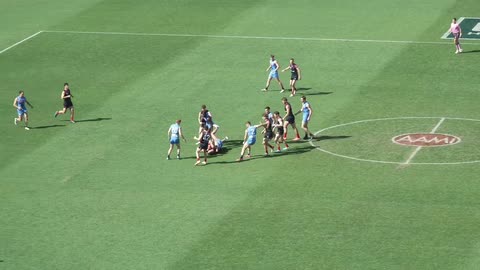
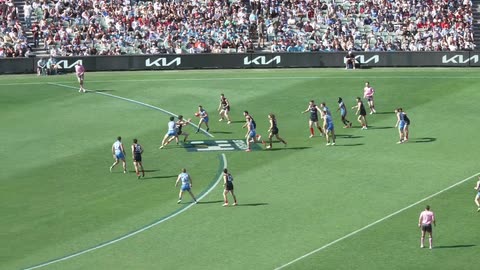
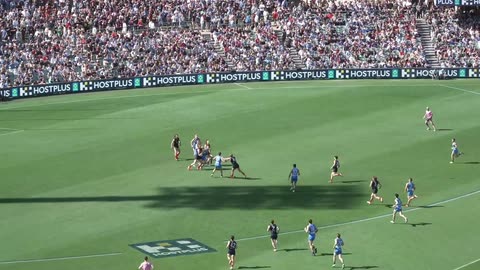
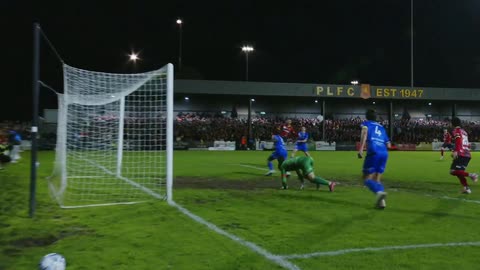
Lead and lag
The clip was cut. It is not final
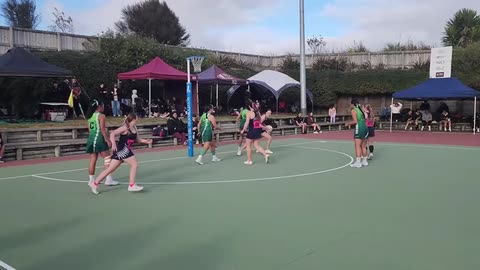
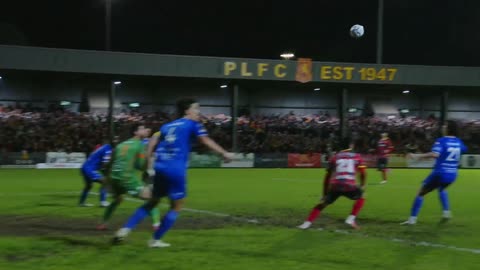
An automatic clip starts a fixed distance either side of the event. Sometimes the build-up started earlier and sometimes the celebration ran on. You can move both ends afterwards, and what happens next depends on what is around it.
Nothing in the way
Drag the in or out point and the clip extends. The editor rebuilds it from the source recording rather than stretching the footage you already have, so the extra seconds are real frames.
A clip sitting next to it
Extend into a neighbour and the neighbour holds its place. Nothing gets shoved down the timeline behind your back. You decide what moves.
Making it shorter
Trim and the space is yours. The sequence duration tracks the clips inside it, so the total is always the sum of what is actually there.
While a clip rebuilds, its settings are disabled rather than silently doing nothing to a clip that no longer exists. When it comes back, it comes back at the length you asked for.
A timeline that behaves
Tracks that know what they are
Video and audio tracks carry different icons and will not accept each other's clips. Dropping an audio clip onto a video track used to produce something that looked fine and behaved wrong. Now it simply will not land there.
Snapping that scales
Clips snap to the timeline's major ticks and to the edges of their neighbours. The snap interval follows your zoom level rather than a fixed value, so it is useful when you are looking at a whole match and still useful at frame level.
Move several at once
Select multiple clips and move them together, across tracks, with the same snapping. Rearranging the back half of a package is one drag.
It saves itself
The sequence autosaves on a schedule as you work, and prompts you if you try to leave with changes outstanding.
Transitions and animation
Put two clips against each other and you can add a dissolve between them. Drag it to set its length, in place, on the timeline, rather than typing a duration into a box somewhere else.
Separately, any clip can have an entrance and an exit of its own: slide in from a side, zoom in, and combinations of the two, each with its own duration and direction. Set an out the same way. If you want a graphic to animate beyond the edge of the frame, turn off clip content and let it travel.
Your own theme
The graphics are already here
The graphics on the timeline are your graphics. Not a title tool's idea of a lower third, but the templates published to your own theme, the same ones the Control Room drives live.
Position and resize them on the canvas, and they play their own in and out animations rather than being faded up and down by the editor. A stats graphic can follow the timeline or hold to a data moment, so a half-time stat stays a half-time stat when you put it in a full-time package.
One sequence, every shape
The canvas pans and zooms the way an editor expects: scroll to move, hold alt and scroll to zoom into wherever the cursor is, space to play and pause, hold space to grab and pan. A re-centre control appears when you have panned away from centre, and goes away when you have not.
The format is a preset, not a project decision you are stuck with. Landscape through to 4K, portrait, square and vertical, all from the same sequence.
Export, then go and do something else
Export runs server side. Start it and carry on editing, or leave the page entirely: the job keeps going and the export list holds its state, so you can see what is exporting, what finished and what failed without keeping a tab open.
Progress shows while it works, and the result is stated plainly in green or red rather than leaving you to guess from a bar that stopped moving.
Watch it work
From the score to the feed
Clips cut from the score while the game is live, the keys you know, your theme's broadcast graphics in the edit with the match data, a sponsor on every replay, and one edit in every shape.
0:54, with sound.
Where it sits
01
Match Center
Moments are clipped from the recording as the match happens, off the same live data that drove the graphics.
02
Moments editor
Trim, rename, tag and adjust lead and lag on individual moments before any sequence exists.
03
Video editor
Assemble them into a sequence with audio, transitions, animations and graphics from your theme.
04
Export
Out in whichever aspect ratio the destination wants, without leaving the platform.
Go further
Highlights & Editing
Where the moments come from: automatic clipping off live match events, tagged and ready before the final whistle.
See how clipping worksFUSE
Where the graphics you drop onto the timeline are built and bound to match data in the first place.
See what FUSE drivesGame Plans
The same graphics, driven automatically during the live broadcast rather than placed by hand afterwards.
See the automationPut your next match on air
Tell us about your competition and we’ll show you how it looks with LIGR.